
Summary
In many competitions, contestants can perform "elective" maneuvers of their own choosing. These elements give competitors an opportunity to do things that most others cannot. In Olympic events, we routinely see difficulty values assigned to optional elements in figure skating, slopestyle snowboarding and gymnastics.
In LiveJudge, we allow administrators to create a library of custom elective elements/maneuvers, each with its own label, description and difficulty element. You can add available elective maneuvers to any judged element by selecting it from the elective menu inside that element. You cannot create an elective on the fly in the Class Studio. This must be done in the Elective Catalog, inside the Scoring Library.
How You Offer Possible Elective Elements to Your Contestants
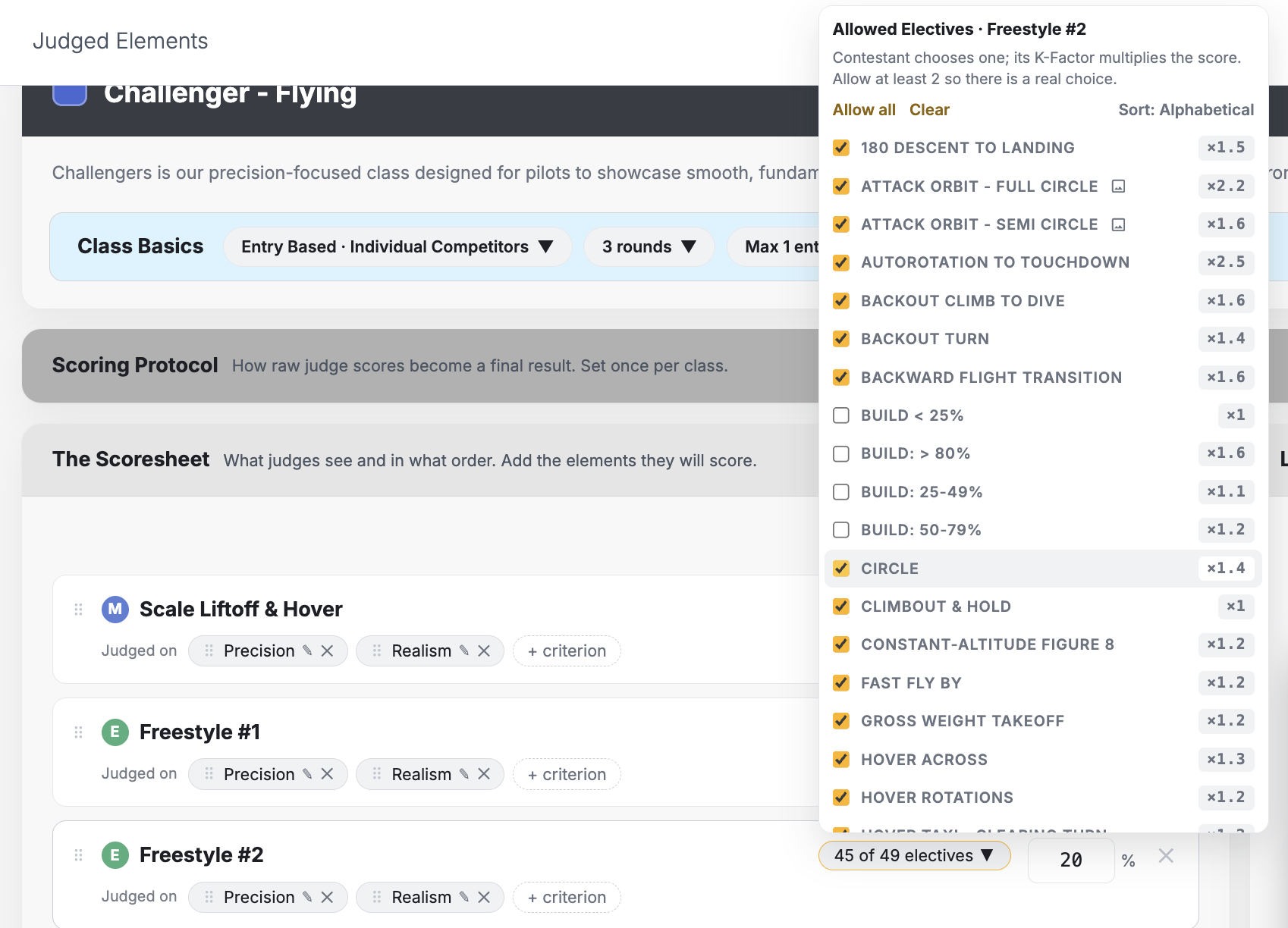
Once you create a library of elective elements, you can return to Class Studio and add them to any elective type element by clicking on the elective menu adjacent to that element's weighting percent.
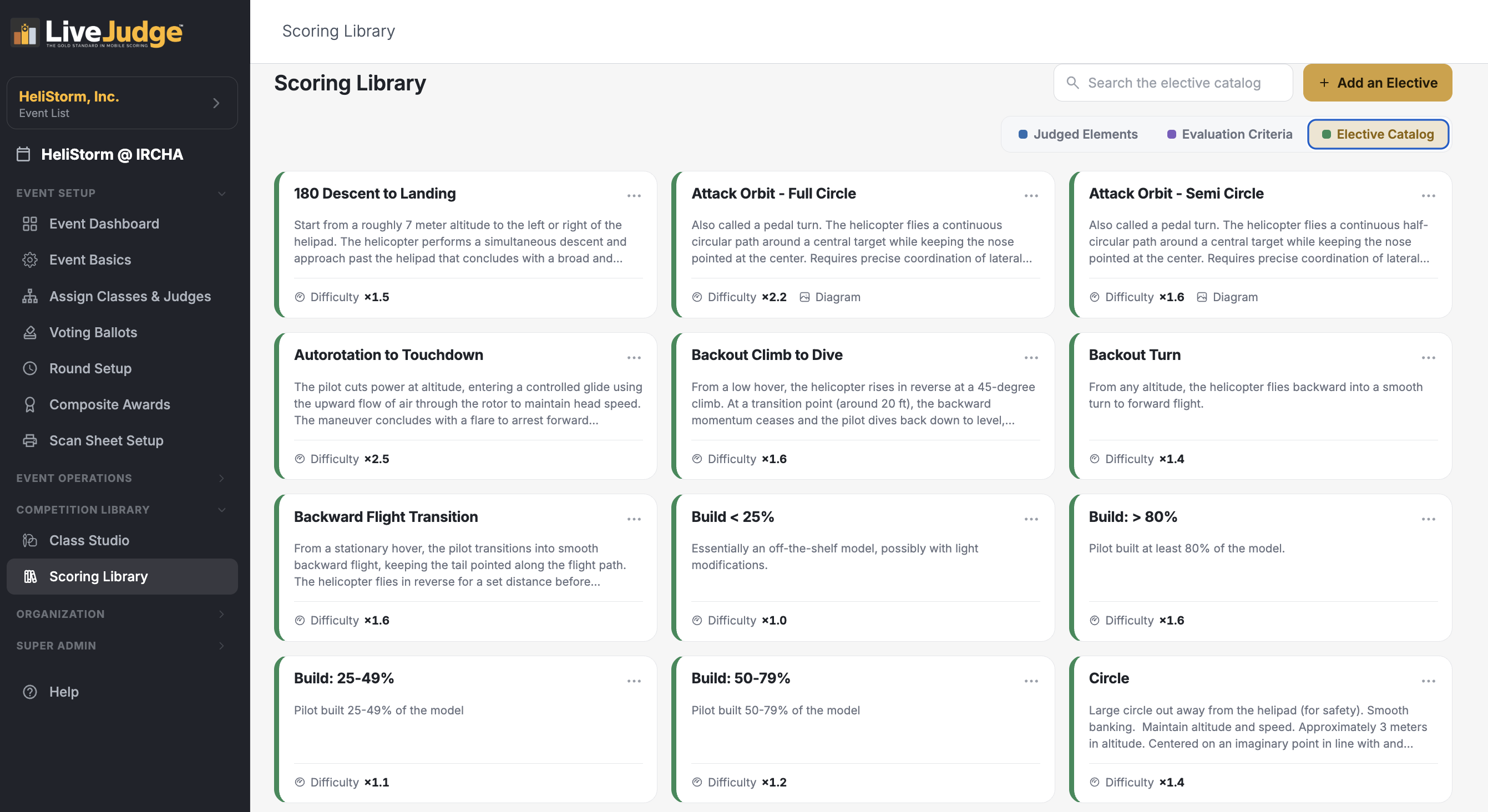
Elective Catalog
To bulk create or edit electives, visit the Scoring Library and select the "Elective Catalog" toggle. From there, you can quickly create and modify an electives and assign difficulty (K) factors.
How Contestants Choose an Elective Element
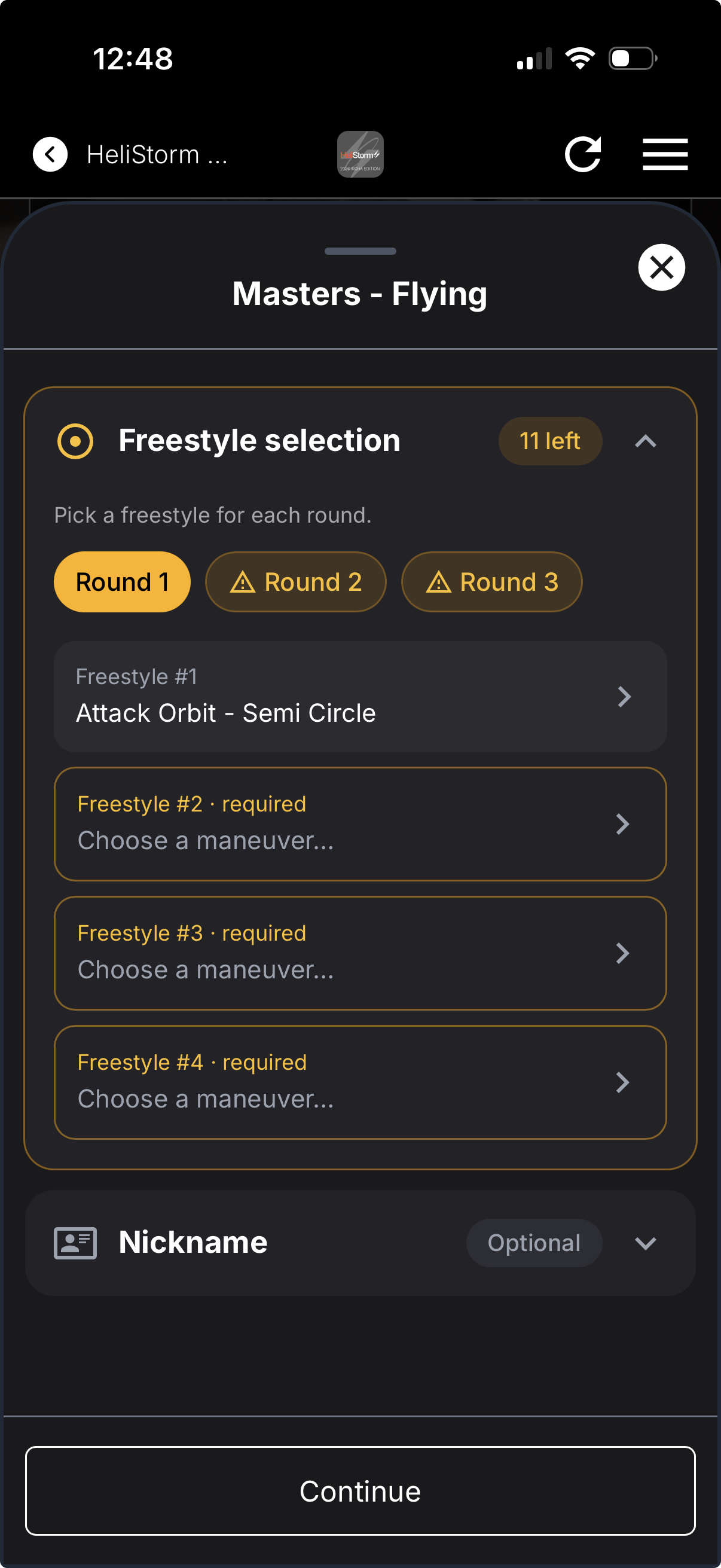
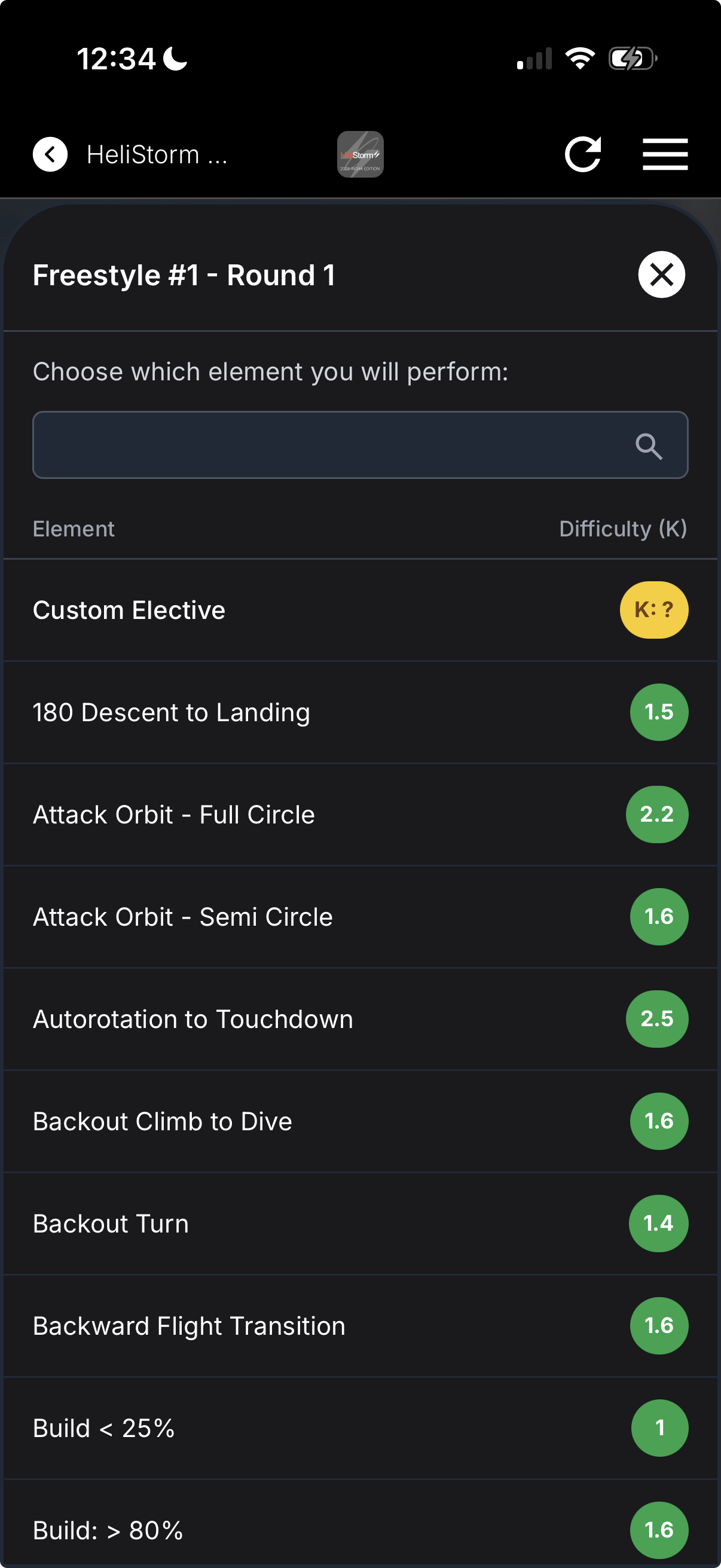
When entering a class, the competitor will see an elective chooser made up of the elective elements you elected to offer them above. Contestants may choose their own elective trick
Custom Elective Elements
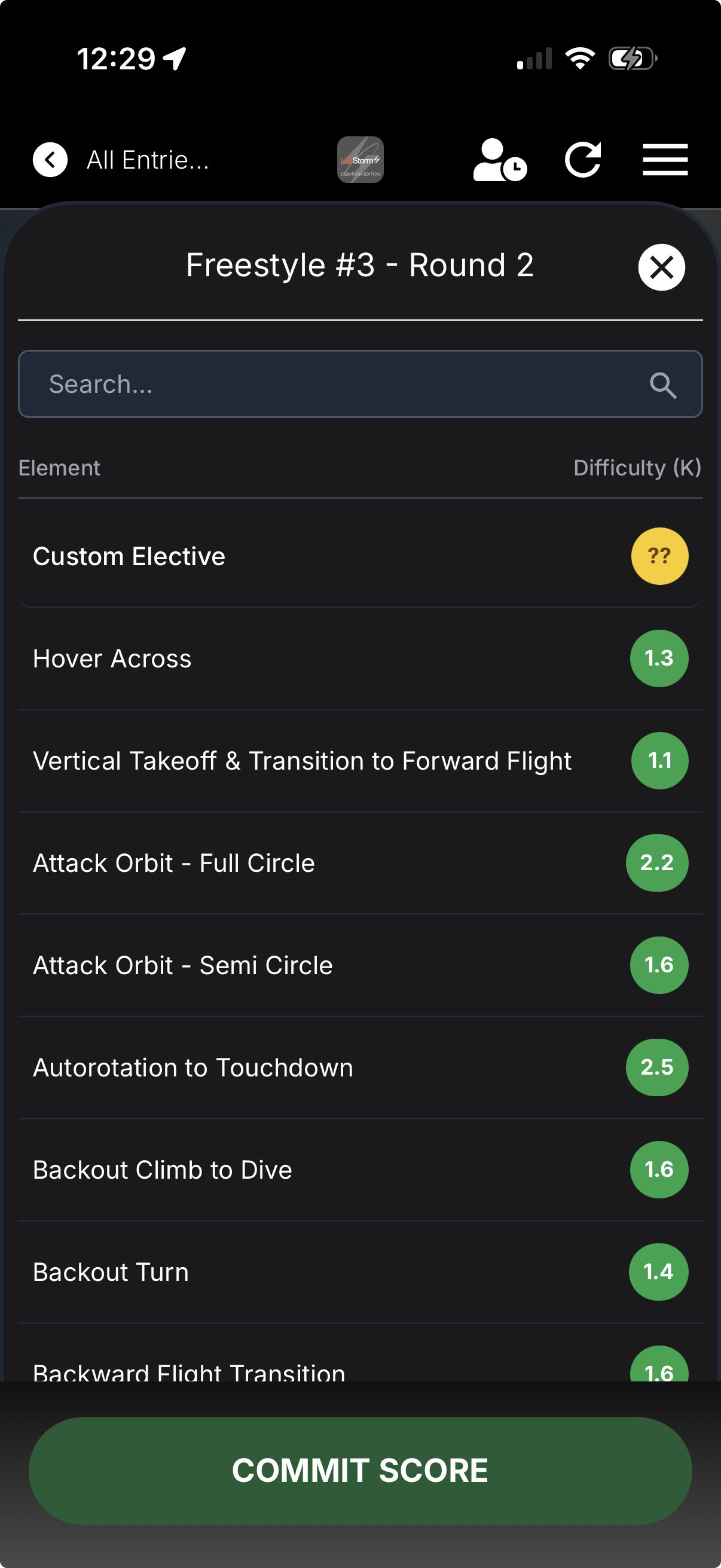
In your judged element setup panel or in the elective selector in the Class Studio, you can switch on "Allow Custom Elective." If you do, contestants will see your list of default elective selection options (in yellow) and a new option that allows them to describe their own elective option (see below).
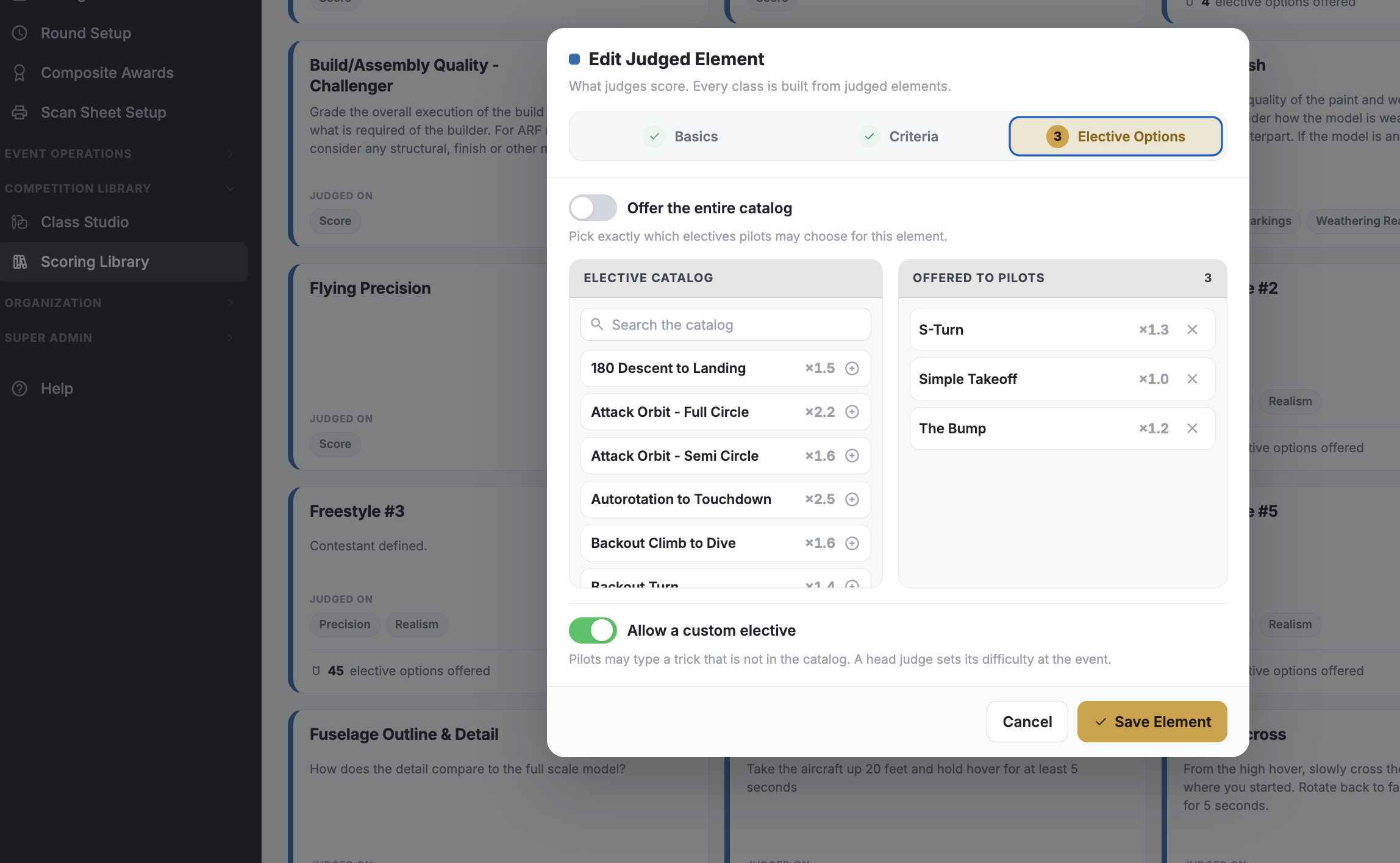
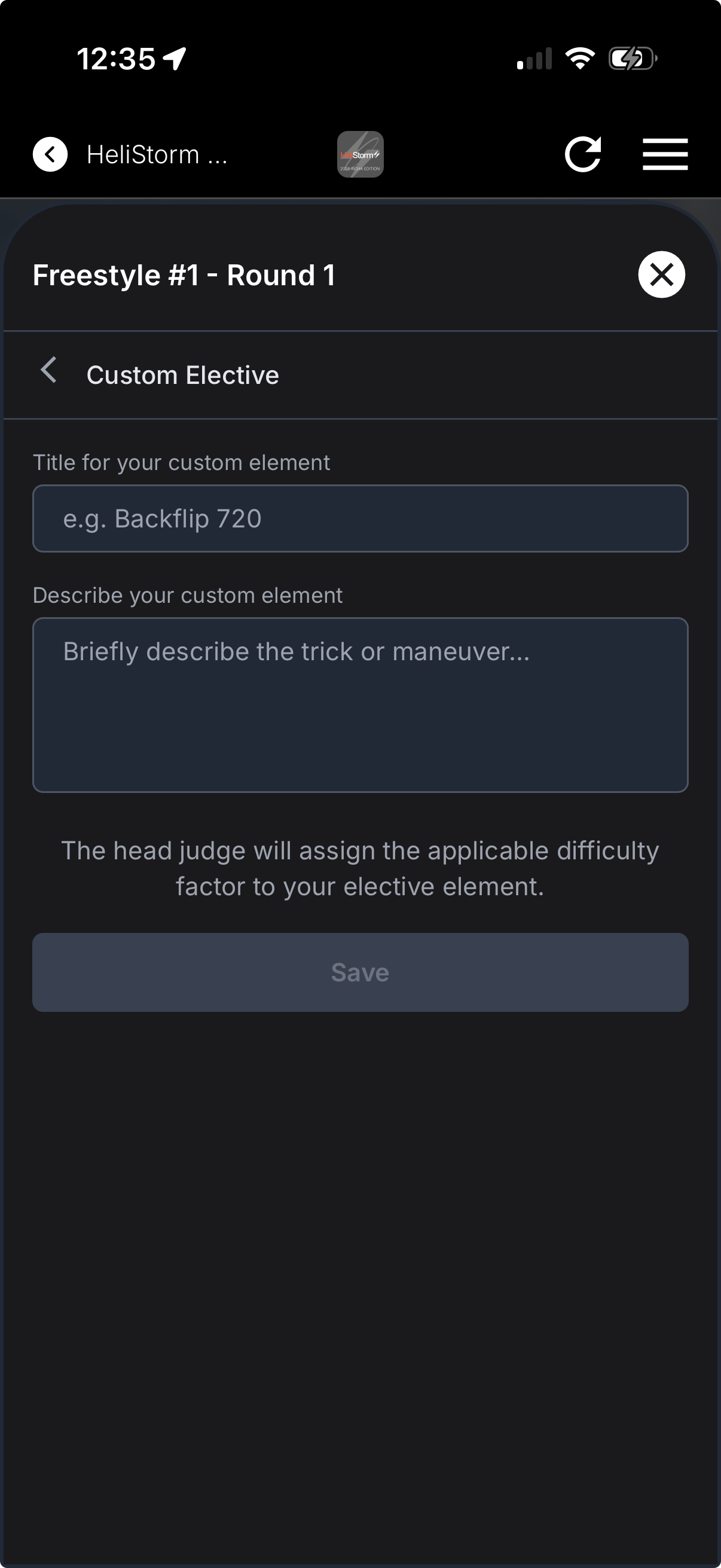
When the contestant goes to define the custom elective element, they can only insert a title and a description. Only the HEAD JUDGE for that round can enter the K-Factor.
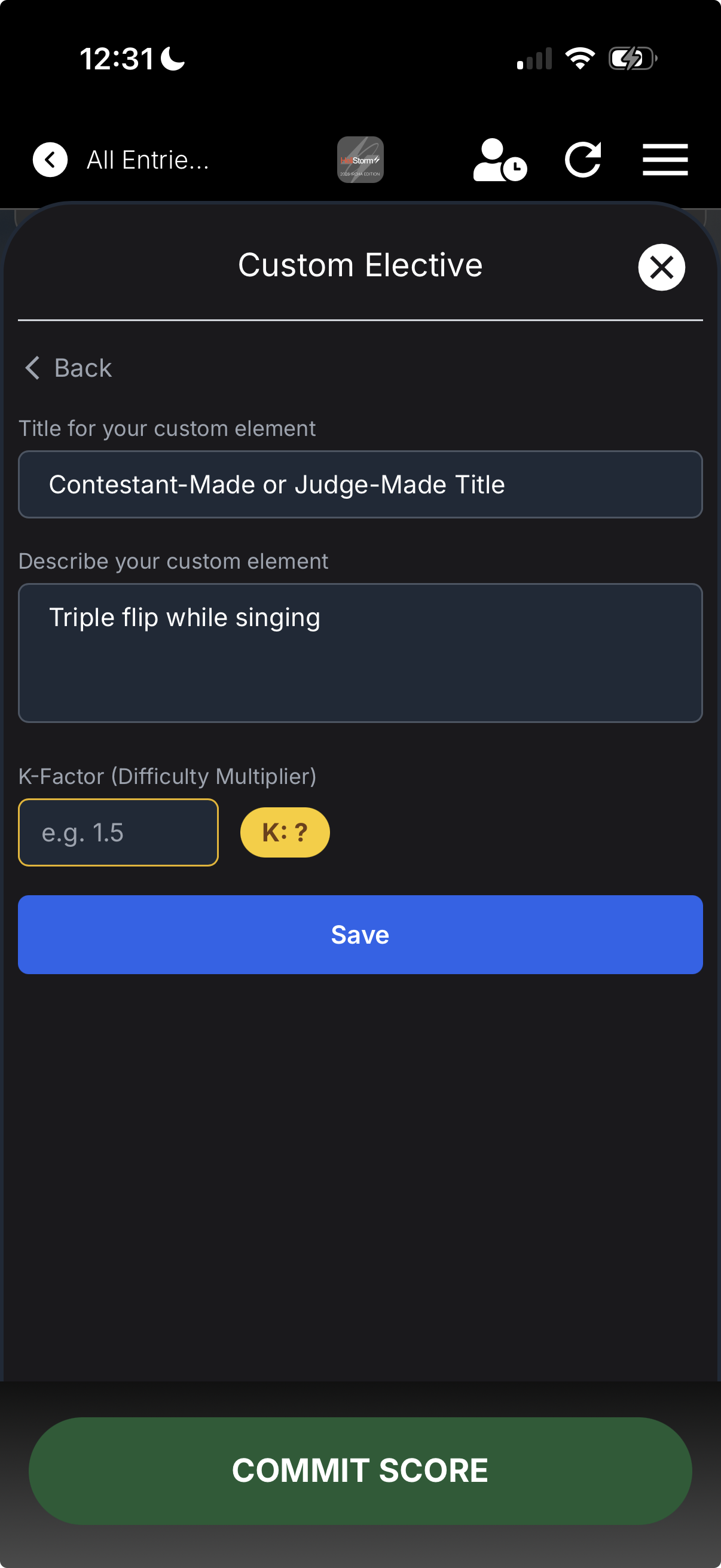
What the Head Judge Sees
The head judge will see a yellow K-Factor box with a ? in it signifying that the contestant has selected a custom maneuver and is now waiting for the head judge to assign it a K-Factor.
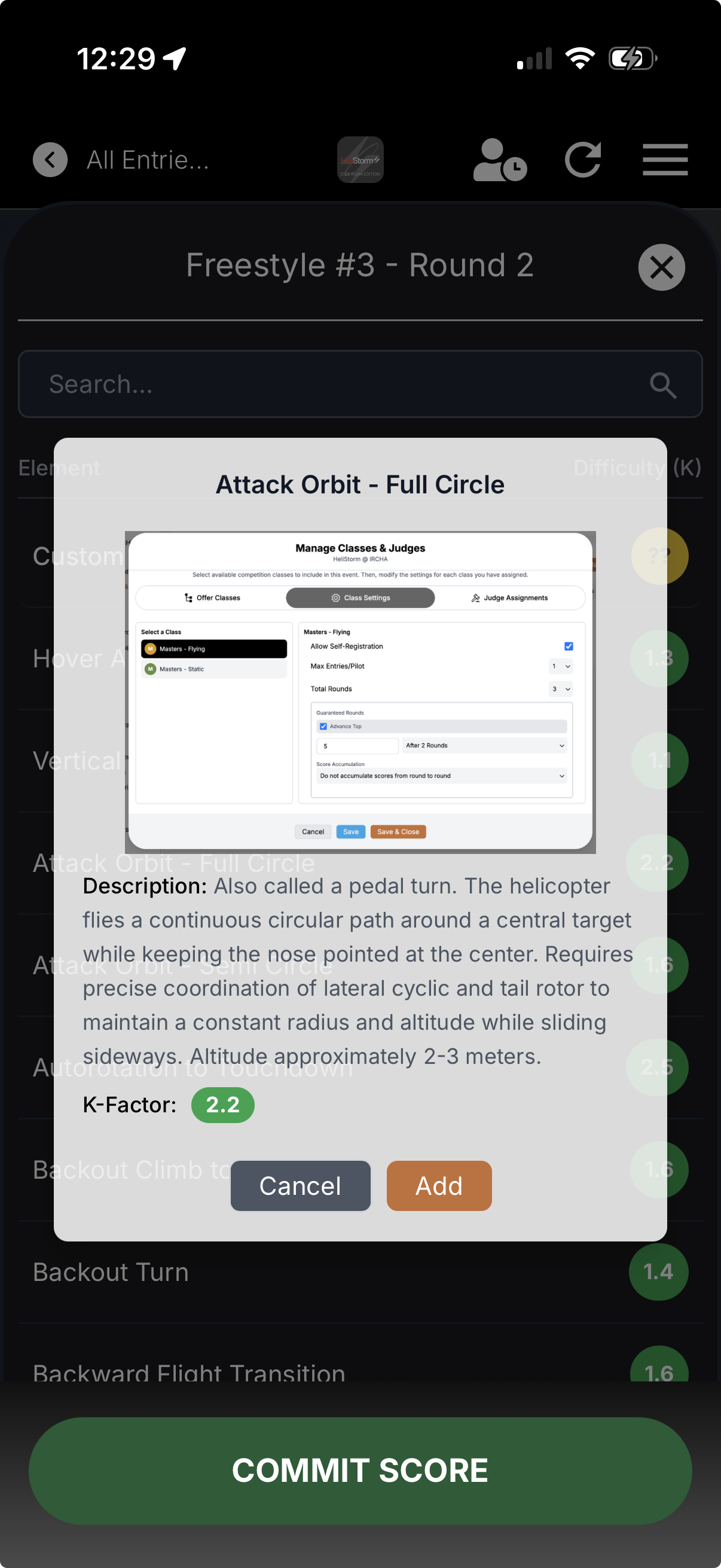
Head judge sees a missing K-Factor. Uses the "Electives" button to open the custom element and assign a K-Factor.
K-element Display
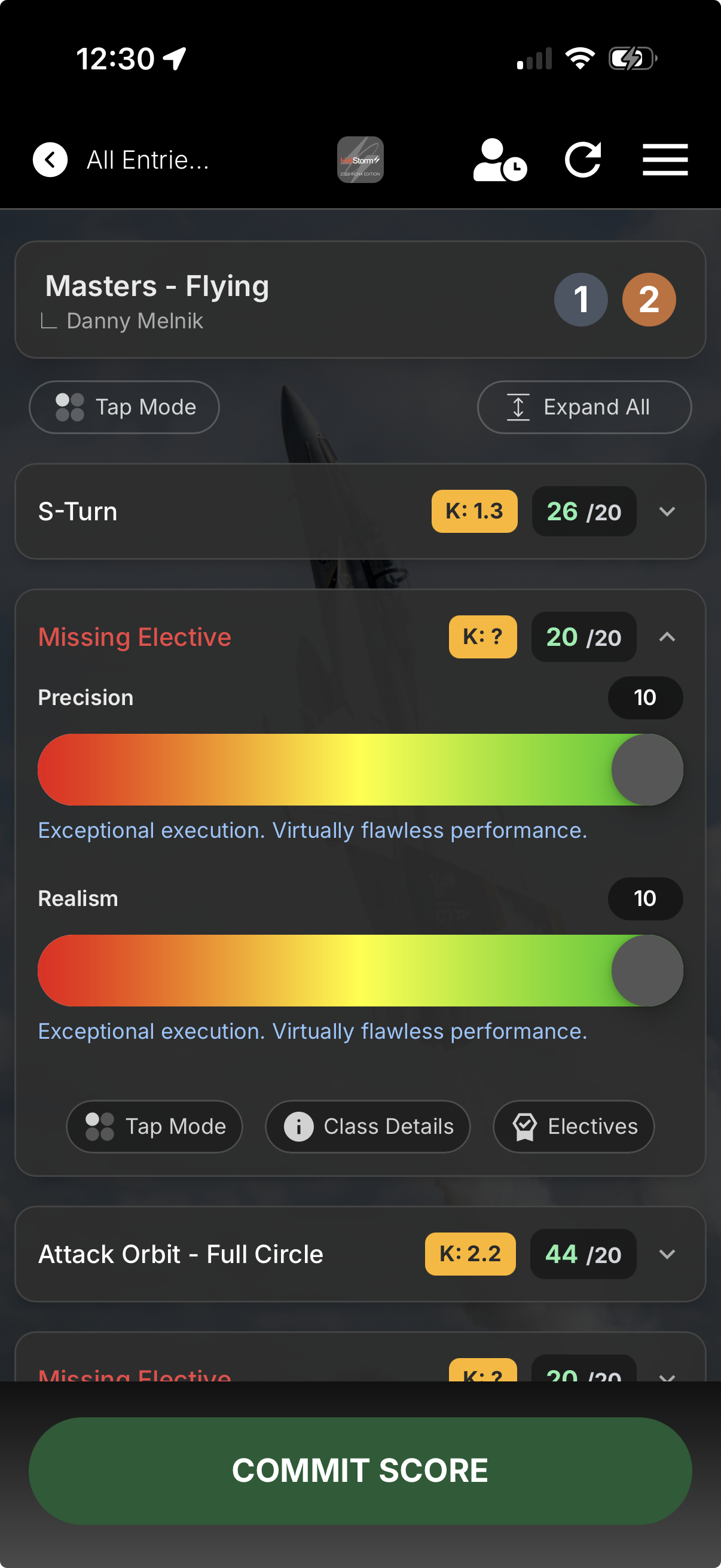
For pre-defined K-Factors and custom ones with assigned K-Factors, all judges will notice that the possible score for that judged element will exceed the total possible points (e.g. 10) provided the K-Factor is higher than 1.0. This is precisely the point of the difficulty element; if the contestant executes the maneuver perfectly, they will get a 12.5 (in our example below) which accounts for the extra difficulty in performing such a maneuver.
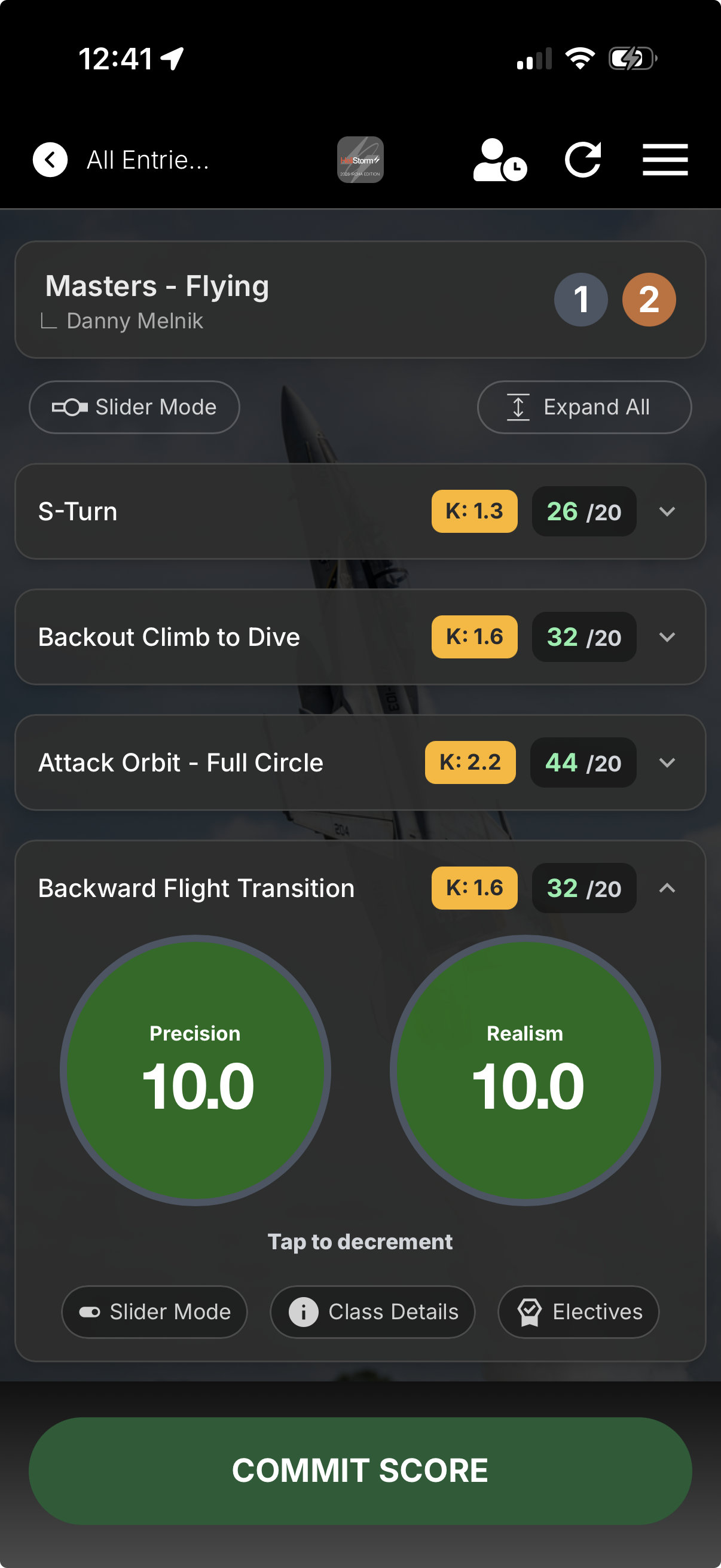
The factors operate as multipliers on the possible base score for each judged element.
Notice that the green "possible" score is the base score multiplied by the K-Factor.
Accordingly, a contestant's score can exceed the total possible base points possible for a round.