
Where it Starts
The Competition Library includes a Class Studio and a Scoring Library. Open the Competition Library and click on "Scoring Library" if you want to bulk edit judged elements, evaluation criteria or the elective catalog. Otherwise, you do almost everything inside the Class Studio.
The Class Studio allows you to construct an entire class without accessing the individual libraries. (you must create electives in the Scoring Library). Nonetheless, if you want to add a bunch of judged elements, electives or evaluation criteria, you can access those libraries independently.
The Elective section of the Scoring Library allows you to create a catalog of "tricks" or "maneuvers" that a contestant can choose from when entering a class that allows for elective elements. For best practices around judged elements, review the judged elements article or the nuances article.
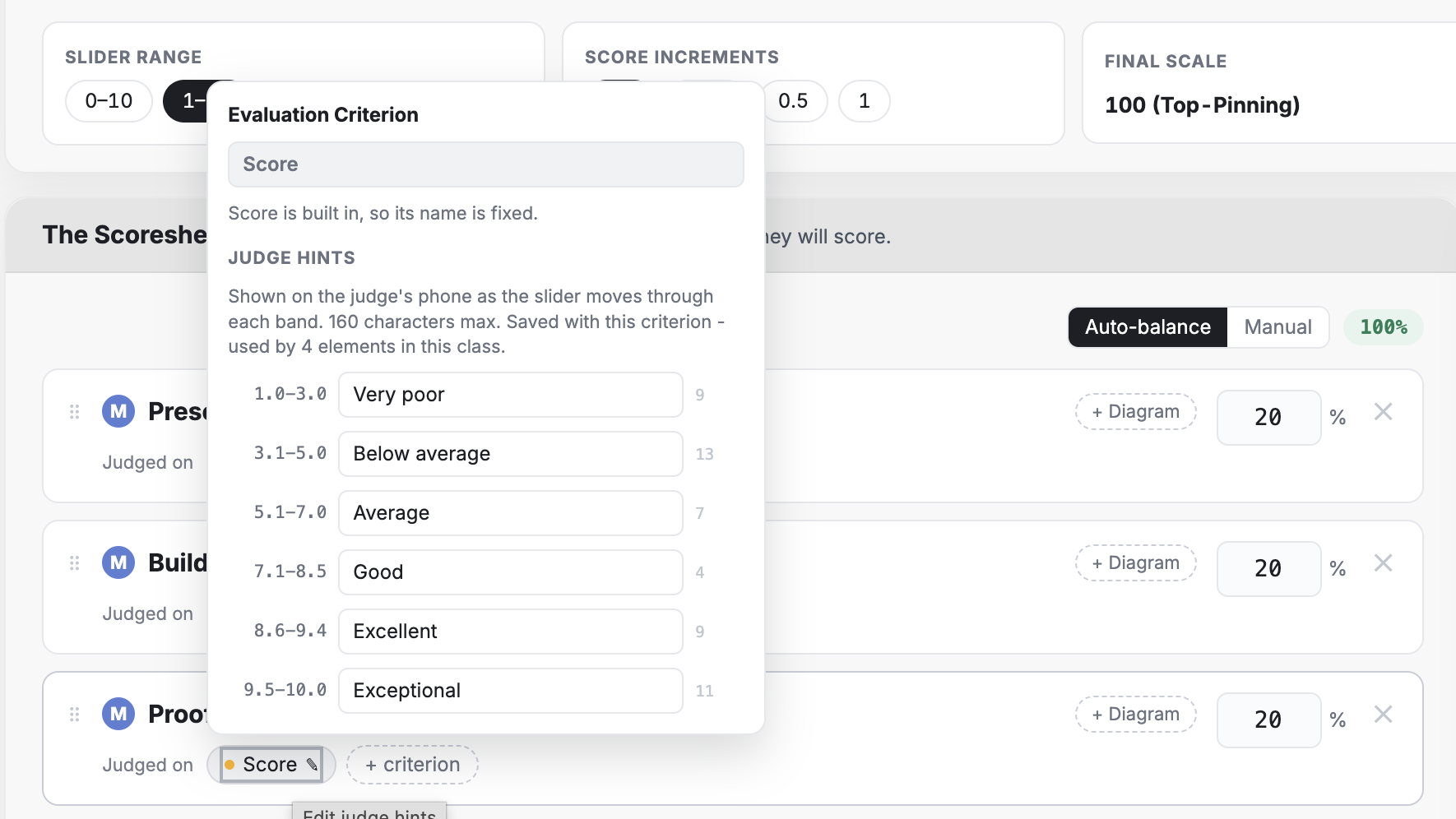
The Evaluation Criteria library lets you add the grading standards by which you judge your judged elements. Each slider on the judge screens represents a criterion. You can create dynamic judge guidance for each criterion (e.g. precision, speed, wow factor) so the judge can instantly understand that a "7.5" correlates to "Reasonably competent, but missed on a few things" (or whatever explanation you assign to that score band).
How Classes Work
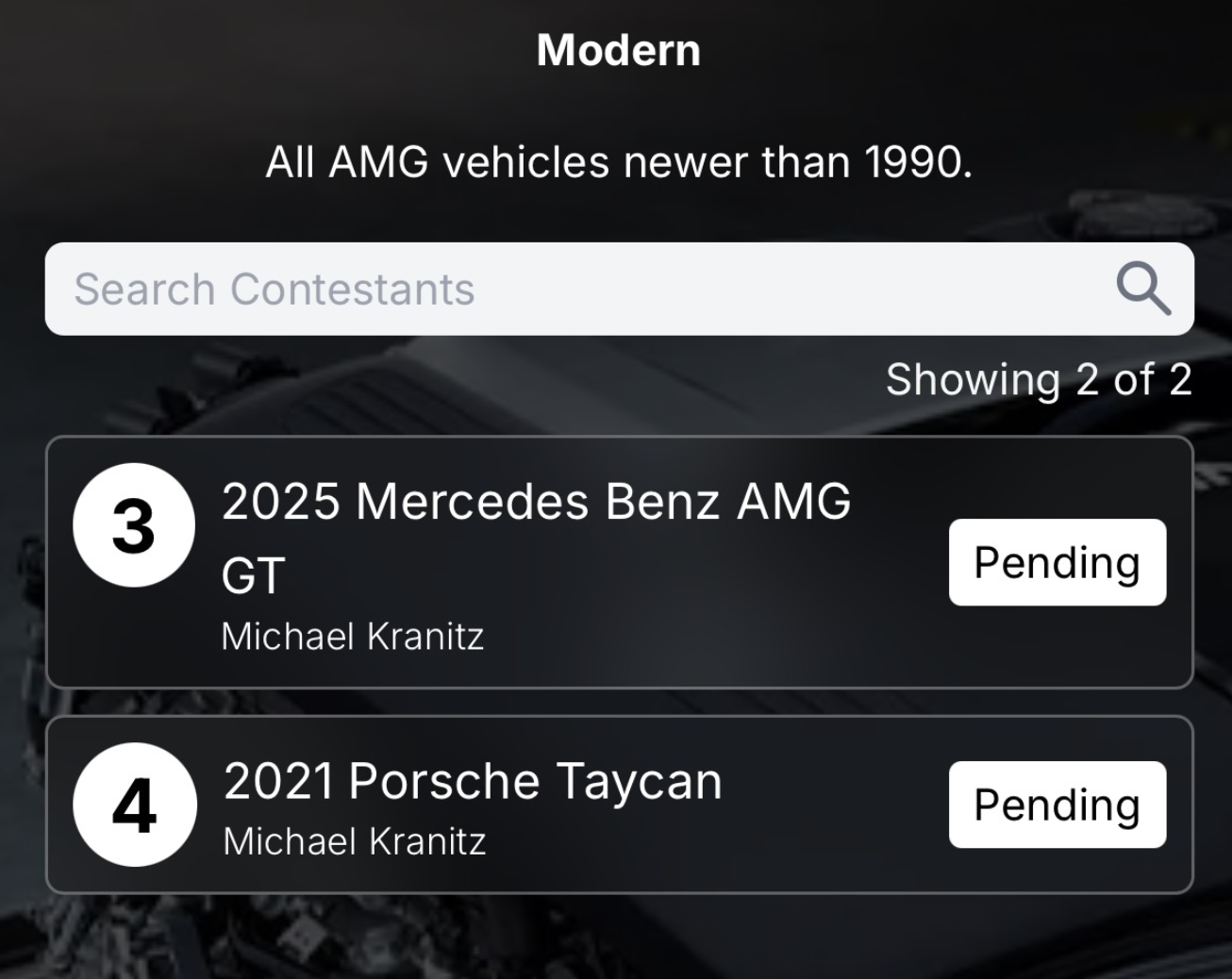
When spectators, contestants and judges interact with the mobile view of your event, they can see the classes you create. Spectators see competitors/entries within a class and accompanying scores. Judges, see the judged elements and evaluation criteria controls to grade these elements. In both cases, everything revolves around the classes you set up in the admin area. An event can have one class or many. It's up to you.
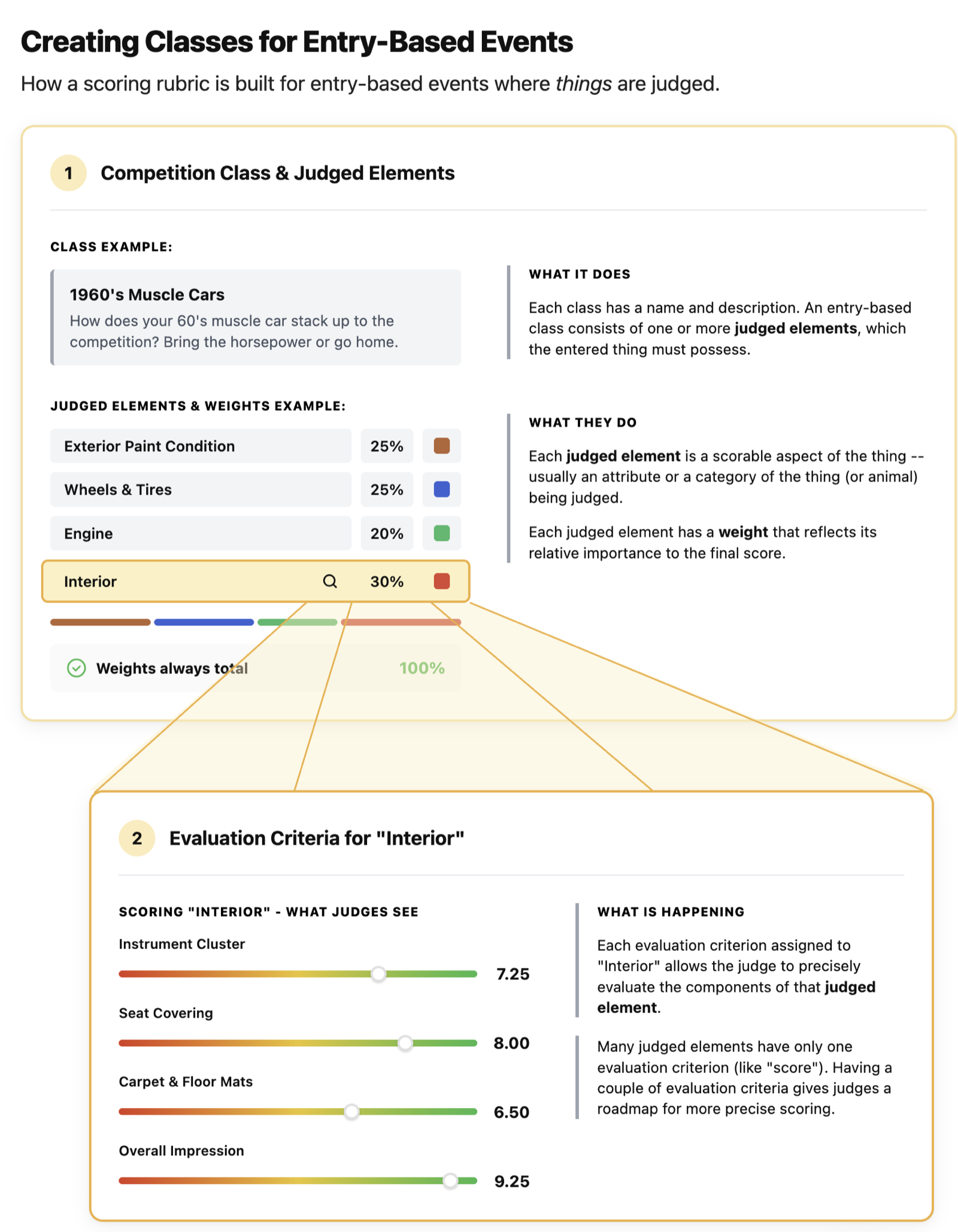
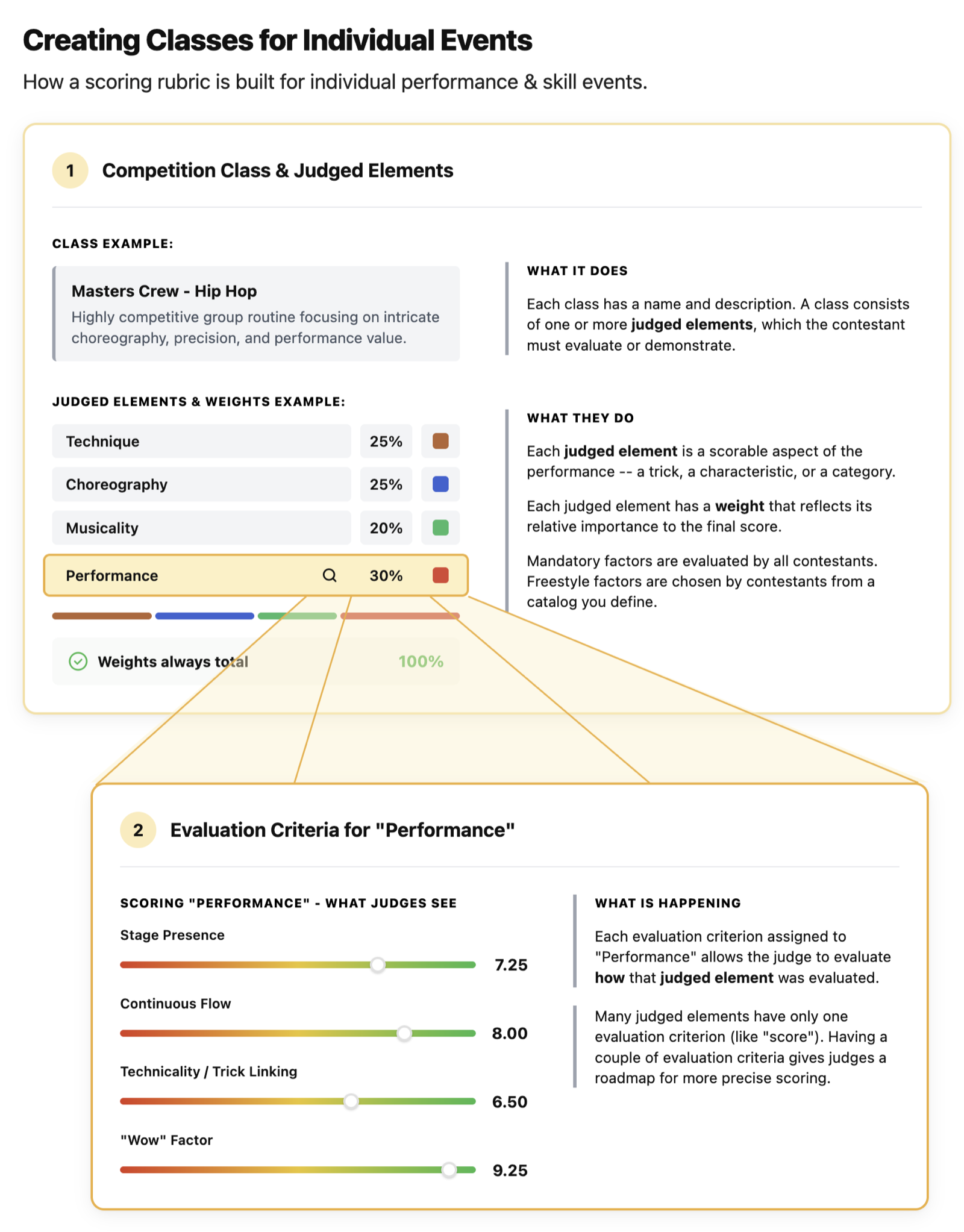
The following diagrams give you a nice overview of how classes work and just how flexible they can be.
Individual vs Entry-Based Events
If your organization runs entry-based events, you'll have the opportunity to create both individual-based and entry-based classes. The distinction is simple: an entry-based event has contestants who enter one or more things or animals into a competition. Contrast this with an individual-based event, like dance or bodybuilding, where the contestant IS the entry.
Class Persistence
We will start you out with a sample class (or more) when you first create your organization. After that, you are free to create, copy and modify your own classes. These classes will remain available for your use across different events you host.
Class Studio
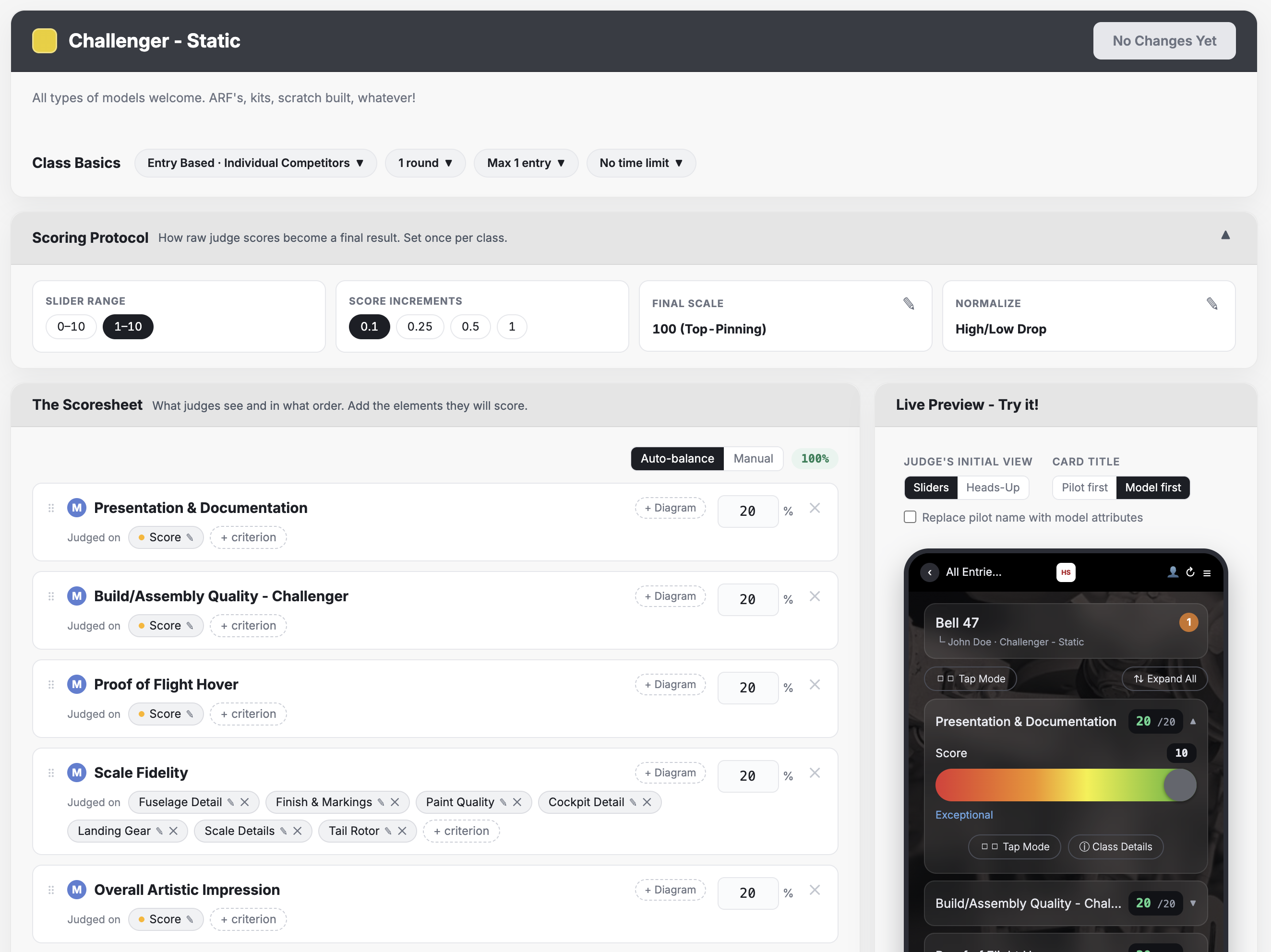
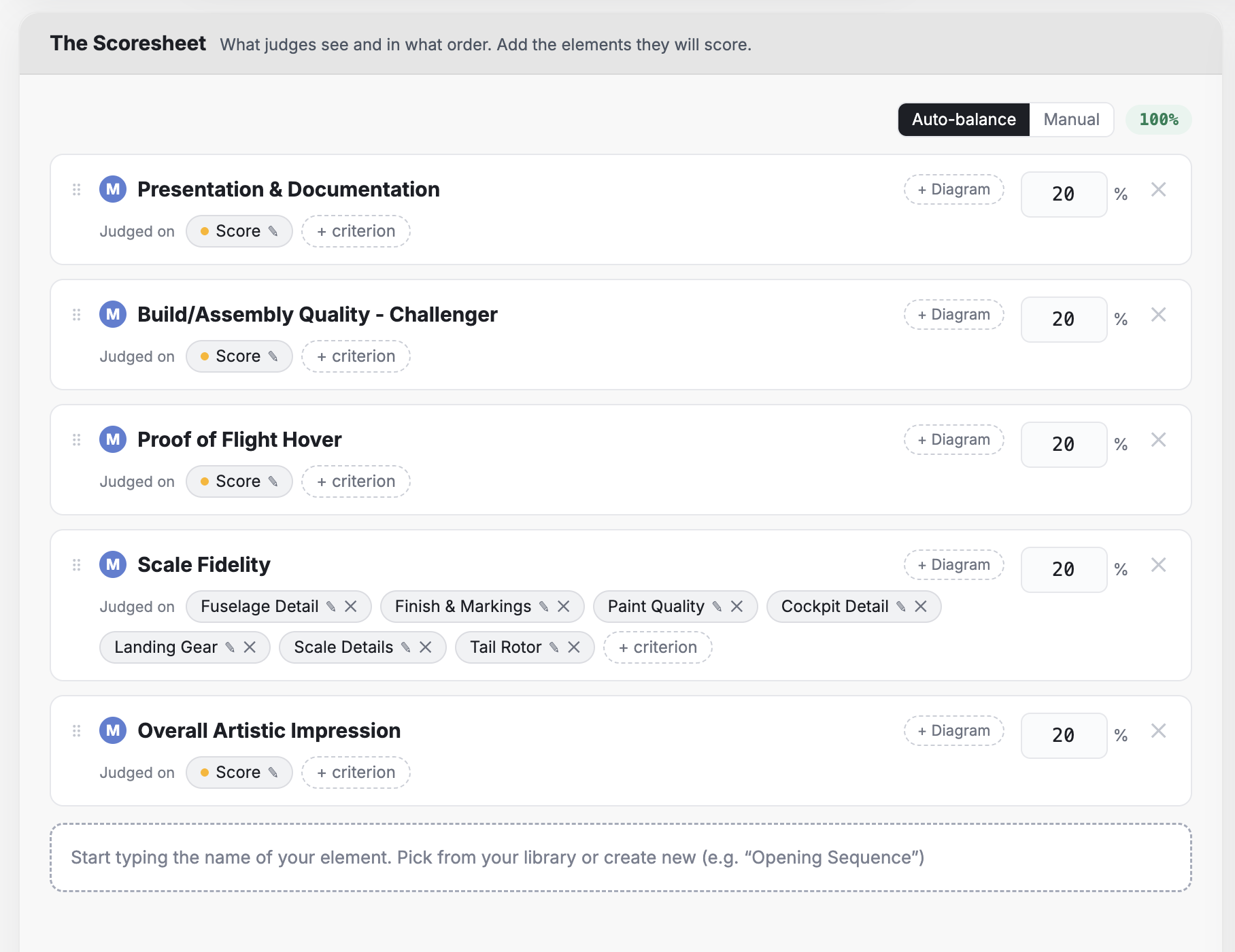
Each class contains multiple attributes that let you tailor everything to the methods you use to judge your competitions. The Class Studio below illustrates the basic information for my Challenger - Static class, a competition of model-building skill. You can see the weighting of each element. An "M" means the element is a mandatory element of the class. An "E" means that the element is an elective element. For elective/optional elements, the contestant will choose from a catalog of elective elements that you make available to them.
Class Basics
Setting up your class is easy. From the Class Studio, you can handle everything.
Class Name & Description. Give each class a name and a brief description for both contestants and spectators. You can choose a color identifier for the class by clicking the color swatch.
Entry Type. For events that host both individual and entry-based events, you must choose the type of class. For individual-based events (like a dance contest), this selection is fixed (to individual).
Rounds. Many events will only have one round, but if yours has multiple rounds, you have the option to introduce "advance the top x" functionality so that your final round has just the top x competitors.
Max Entries. Normally just set to 1, the max entries per contestant control lets you specify how many entries a single contestant can enter into the class.
Time Limit. This is a reference number only for judges.
Default Basics. The default round attributes may be changed on an event-by-event basis. Setting the defaults for your most typical events will save you time setting up each event that includes the class you are working on.
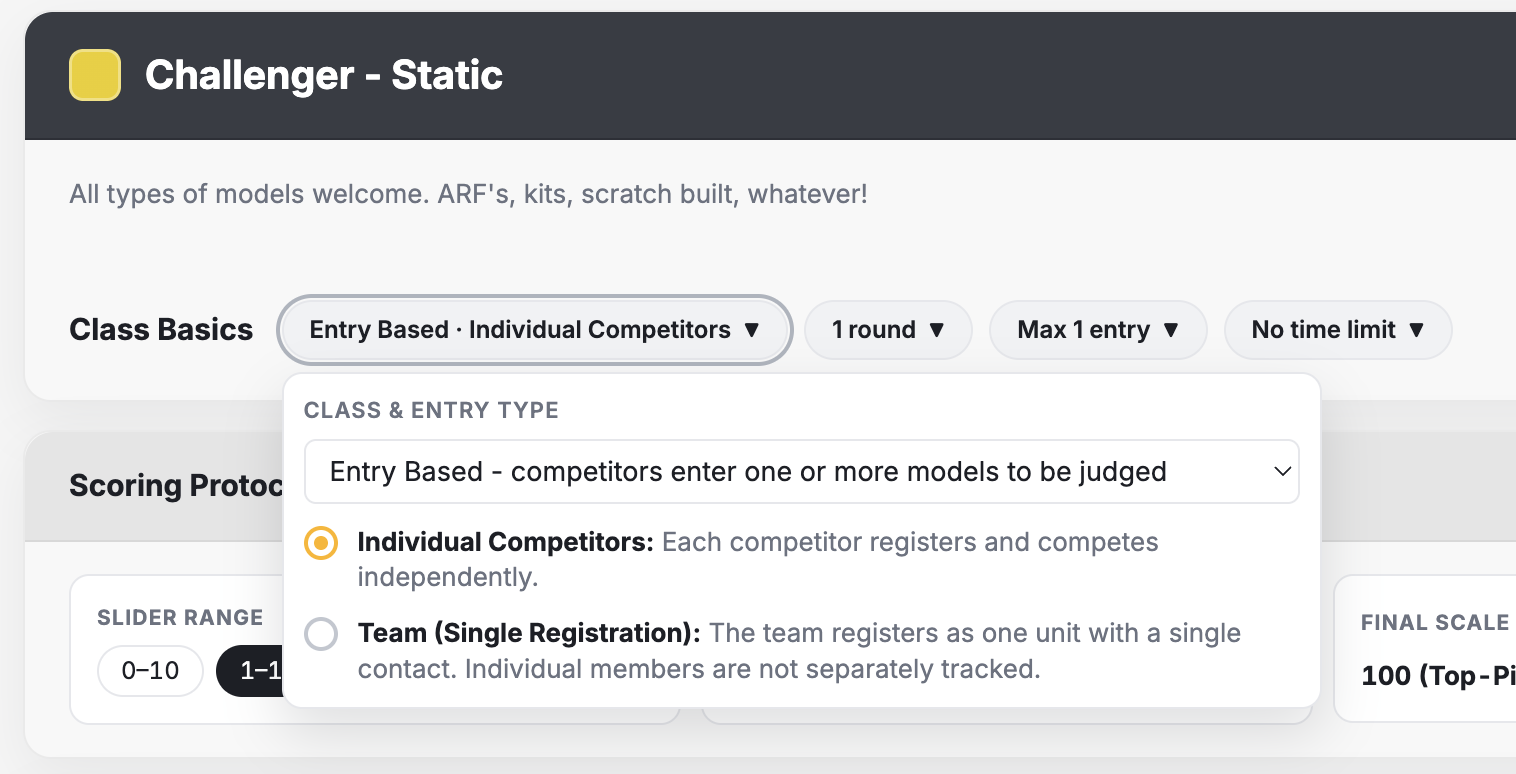
Sample class setup "Basics" tab
Judged Elements. In the Scoresheet section, you can add or remove judged elements for this class and set their relative weights. You can set the order of the elements by dragging the selected elements. Each element can have a diagram and any number of evaluation criteria.
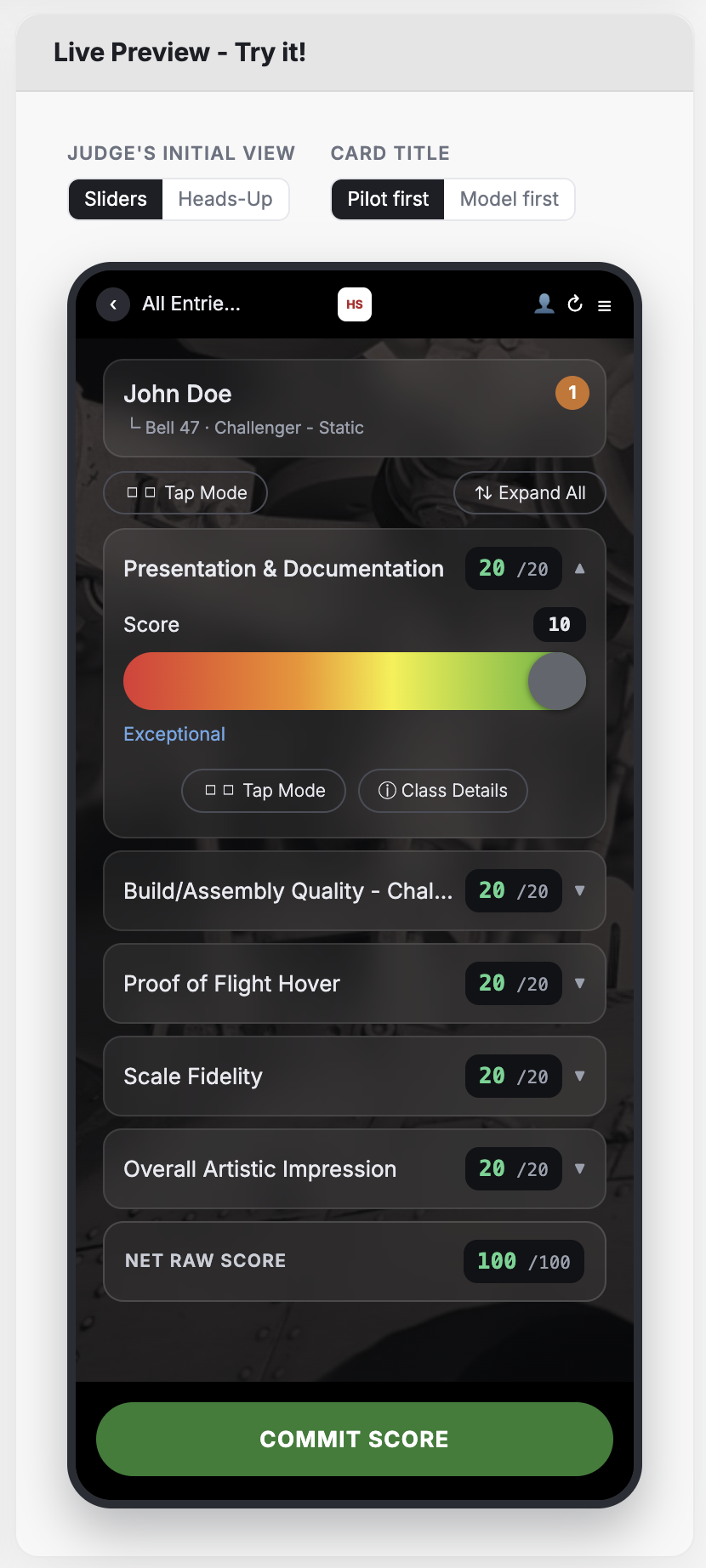
Mobile View - Judging Layout. The live preview to the right of the Scoresheet is interactive. You can visualize exactly how your class will appear to a judge. In the actual mobile display, however, tapping on the contestant/entry tile at the top of the screen will slide out details and multimedia for the entry/contestant being judged. In addition, tapping on "Class Details" (on actual mobile) will display all of the class settings for the judge to reference.
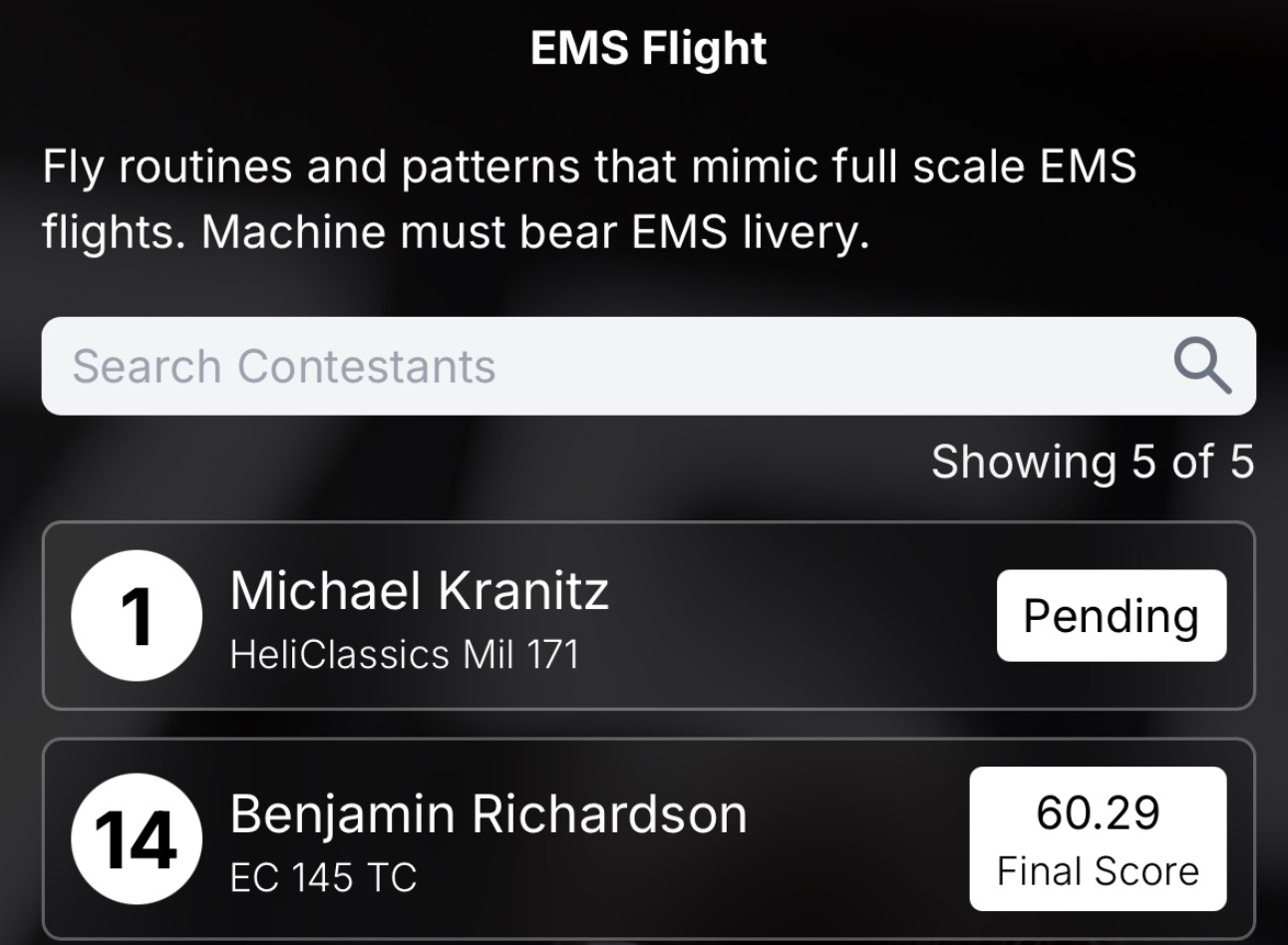
Mobile View - Card Title. This control appears in entry-based events only (e.g. car shows, science fairs, and any other event where the contestant can have one or more entries that are judged). The options on this screen allow you to give primacy to either the contestant or the entry in the mobile view. You can also hide the contestant's name if you wish to maintain strict privacy. This control is hidden for individual events (like dance, cheer, etc.).
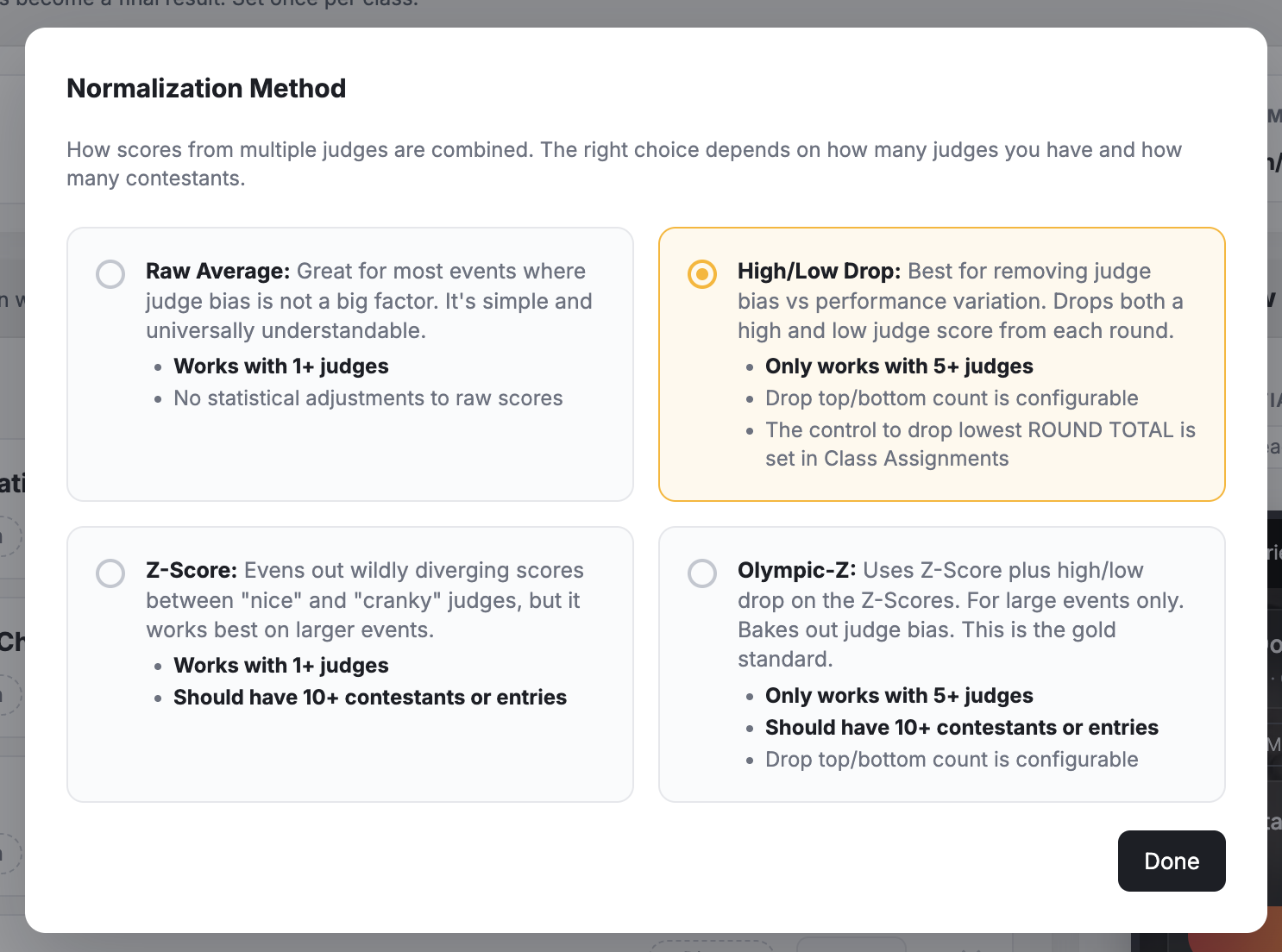
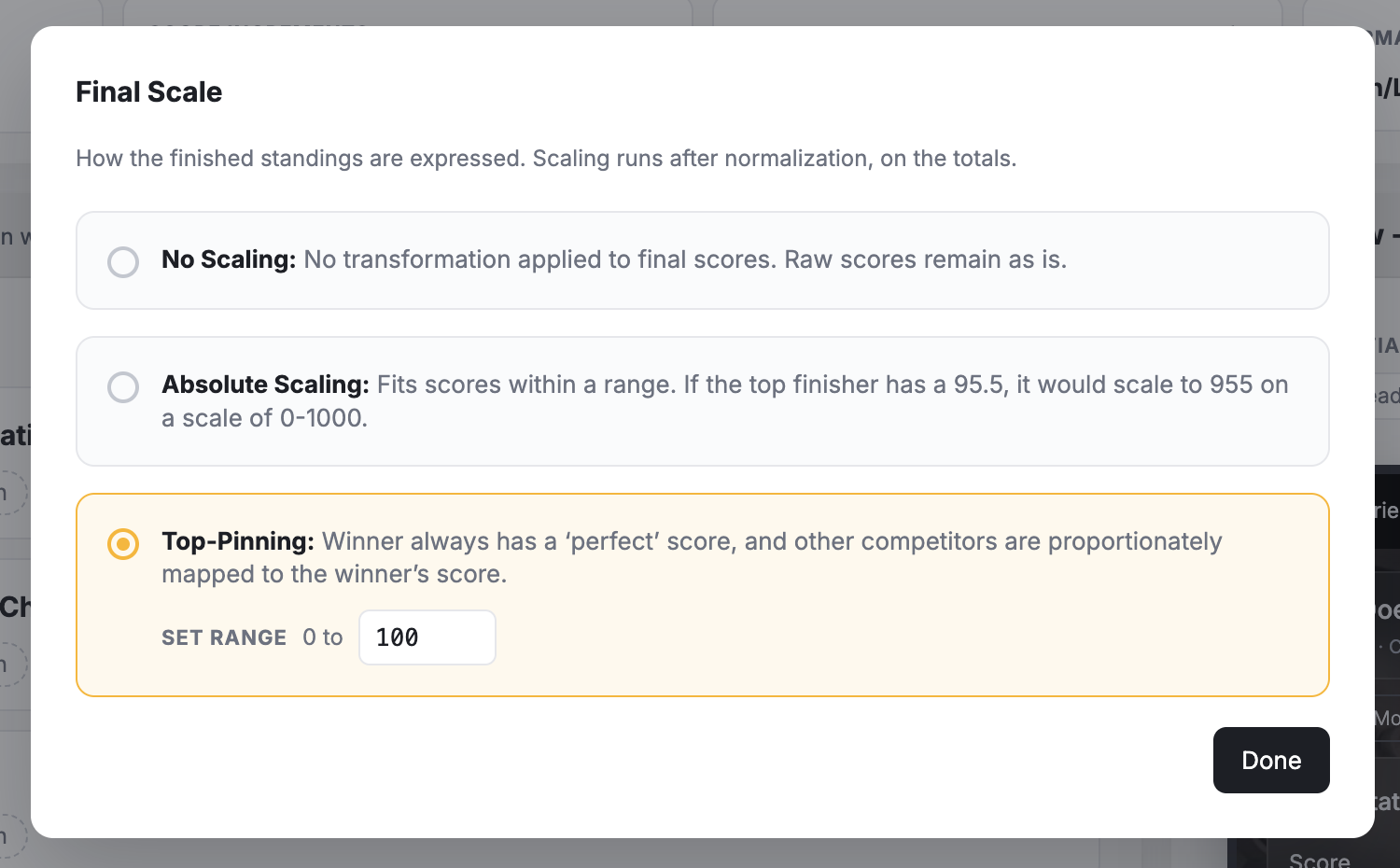
Scoring Protocol. For a deep dive on scoring protocols, read this article. The scoring protocol section of the Class Studio lets you set normalization, scaling and slider/tap ranges as shown in the screens below.

Assigning Classes to Your Event
Your class library will be available across all of your organization's events! To learn more about assigning a class to an event, read this quick article.