
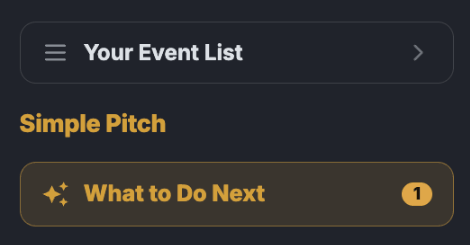
The gold What to Do Next button sits at the top of the left menu, right under your event's name. It is the fastest answer to "what am I missing?" because it reads your event as it is right now, not a generic checklist. The number on the button counts the things you must fix before you can publish.
Three tabs
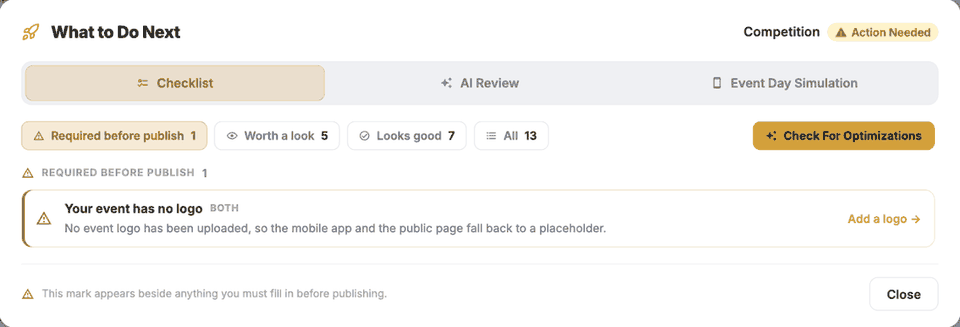
- Checklist. Opens first. Every check on your event, filtered by Required before publish, Worth a look, Looks good or All. Each row names the problem and links straight to the screen that fixes it, and the list updates by itself as you work.
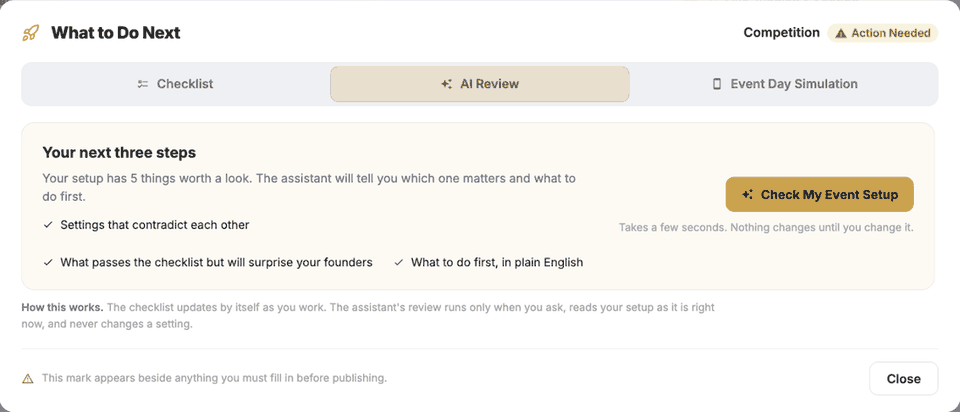
- AI Review. Press Check My Event Setup and the assistant reads your whole setup and gives you your next three steps in plain English: settings that contradict each other, what passes the checklist but will surprise your contestants, and what to do first. It takes a few seconds, runs only when you ask, and never changes a setting. The Check For Optimizations button on the Checklist tab brings you here.
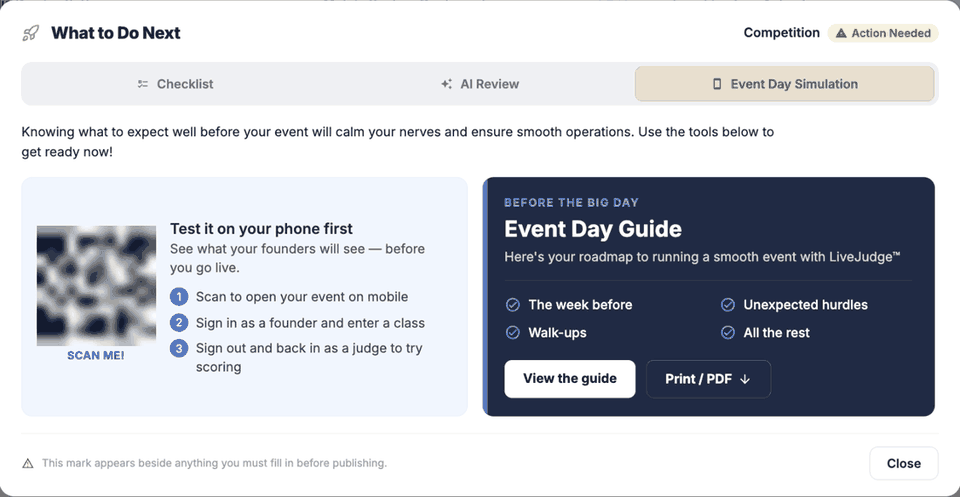
- Event Day Simulation. A QR code that opens your event on your own phone, so you can sign in as a contestant and enter a class, then sign back in as a judge and try scoring. The Event Day Guide is here too, to view or print.
When to use it
- Right after you create an event, to see what is still missing.
- Whenever you wonder why you cannot publish yet: the Required before publish items are exactly what is in the way.
- Before you publish, run AI Review for the things a checklist cannot catch.
- A week before your event, walk through Event Day Simulation on your phone.
What the marks mean
A warning mark beside an item in the left menu (Event Basics, for example) means that area holds something required before publishing. Worth a look items never block publishing; some are deliberate choices and say Intentional? so you can confirm them and move on.
Our help assistant answers from the articles in this help center. What to Do Next answers from your event itself, so for questions like "what should I do next", "is my setup right" or "why can't I publish", it is usually the best first stop.