
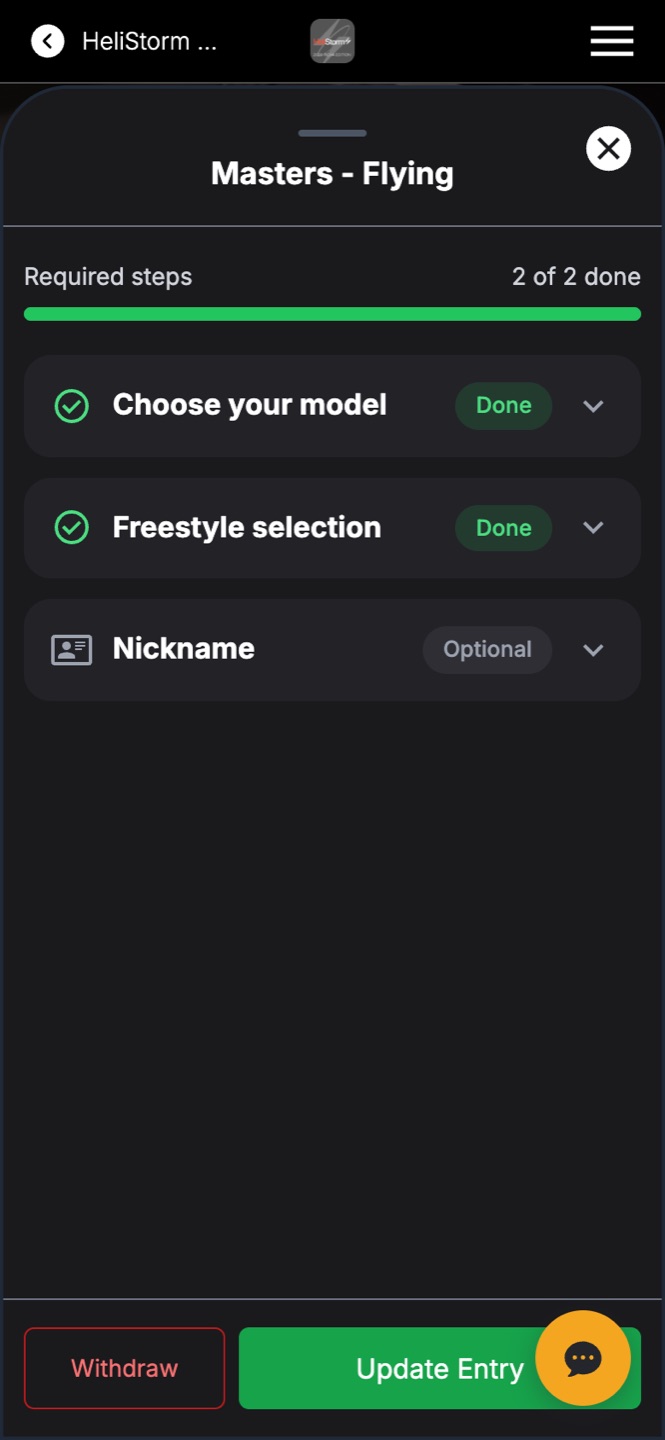
When a contestant taps Enter this class (or Review entry), a panel slides up and walks them through exactly what the class requires. A progress bar across the top shows required steps and how many are done — nothing is left to guesswork.
Step 1 — choose the entry
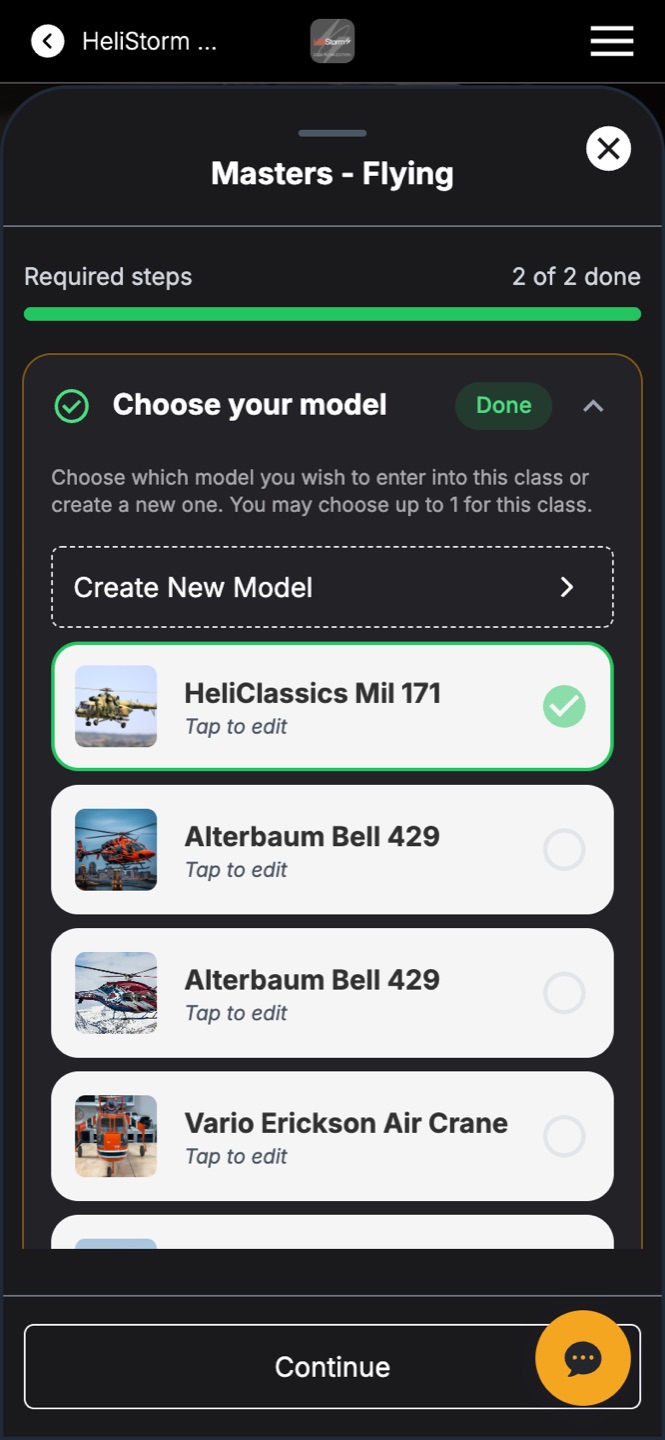
The first step — titled in your event's own vocabulary, e.g. "Choose your model" at an RC event — shows the contestant's entry library: every model, routine, car, or project they've ever added, with photos. They tap to select one for this class, or tap Create New Model to add one on the fly. The instructions tell them how many entries this class allows.
Additional steps (if your class has them)
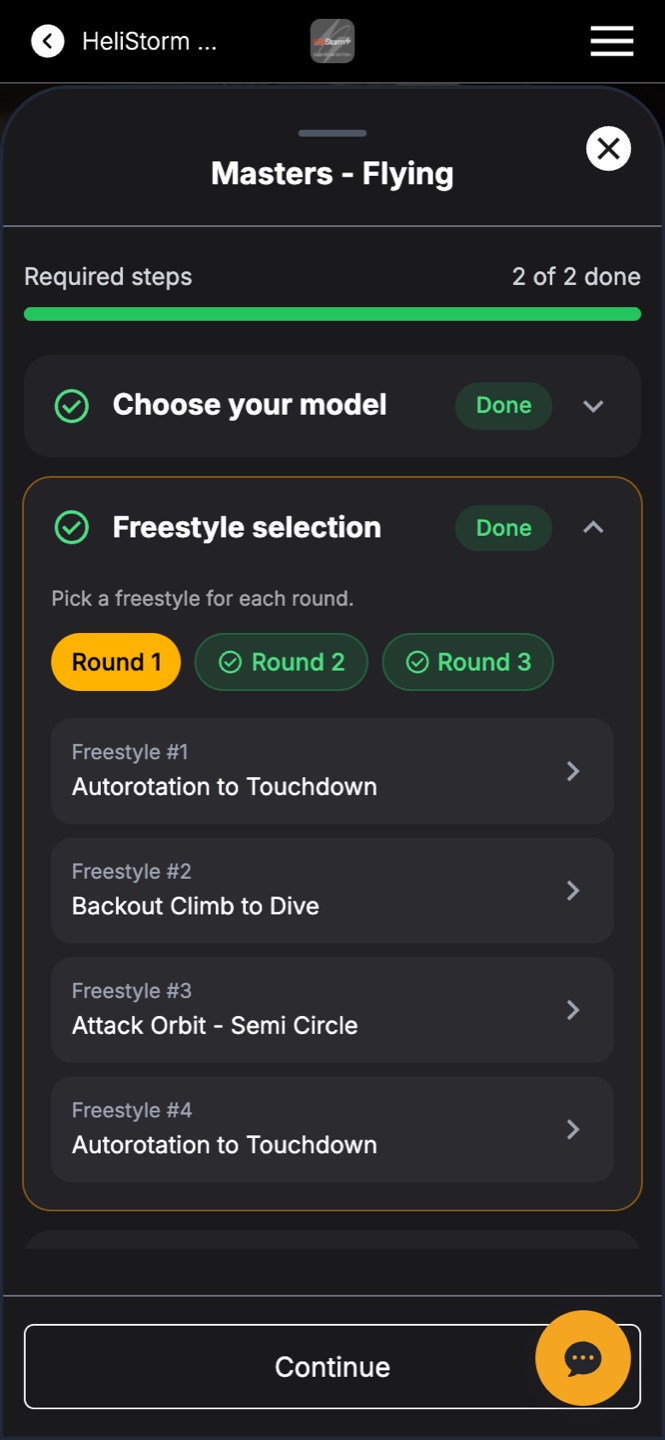
Classes can carry extra required steps. A flying class, for example, can require a elective selection — pick a maneuver for each round, with a chip per round showing which rounds are set. Optional steps, like a nickname, are clearly marked Optional and never block completion.
Saving
The Update Entry button stays anchored at the bottom of the panel. When the required steps show done, one tap saves the registration and the class card flips to Complete. A contestant can also Withdraw from the same panel — the card then shows Withdrawn instead of quietly disappearing.