
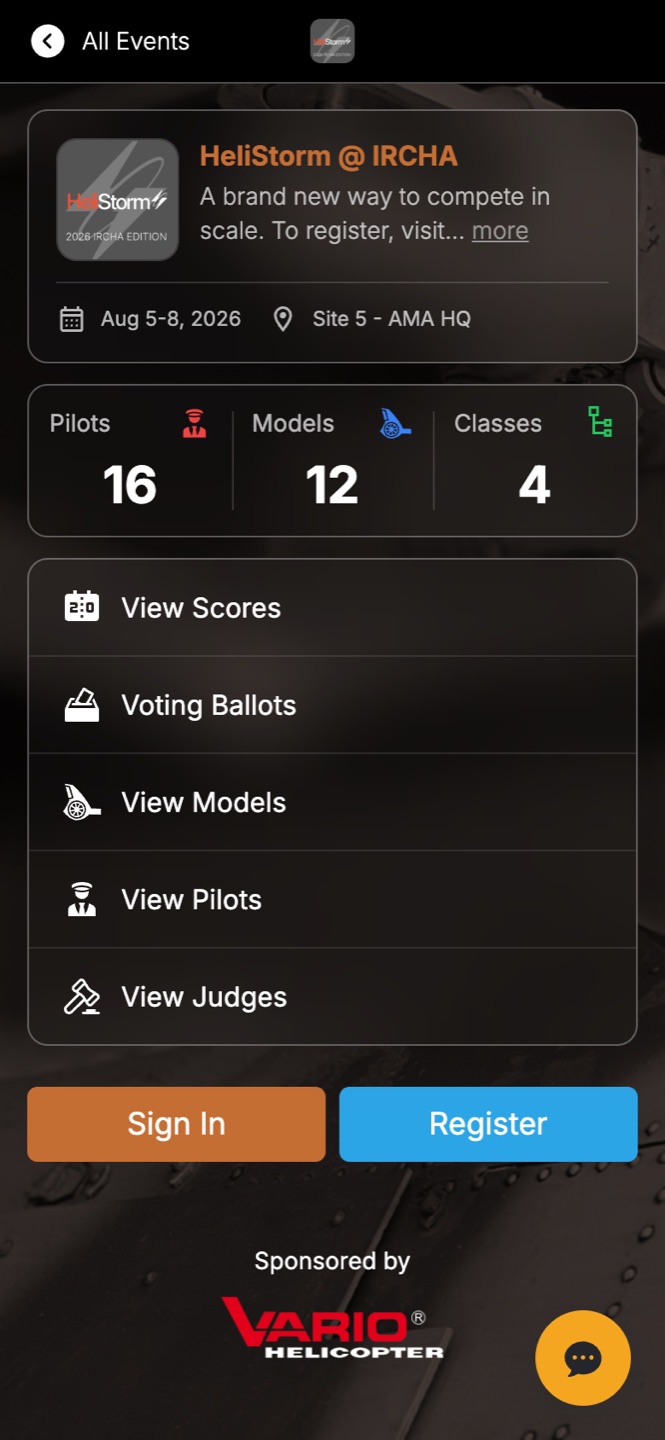
Contestants reach your event by scanning your event QR code or opening the event link — either way they land on your event page, with your branding, dates, and live stats. From there, one tap on Sign In starts a flow that takes under a minute.
The sign-in flow
- Tap Sign In on your event page.
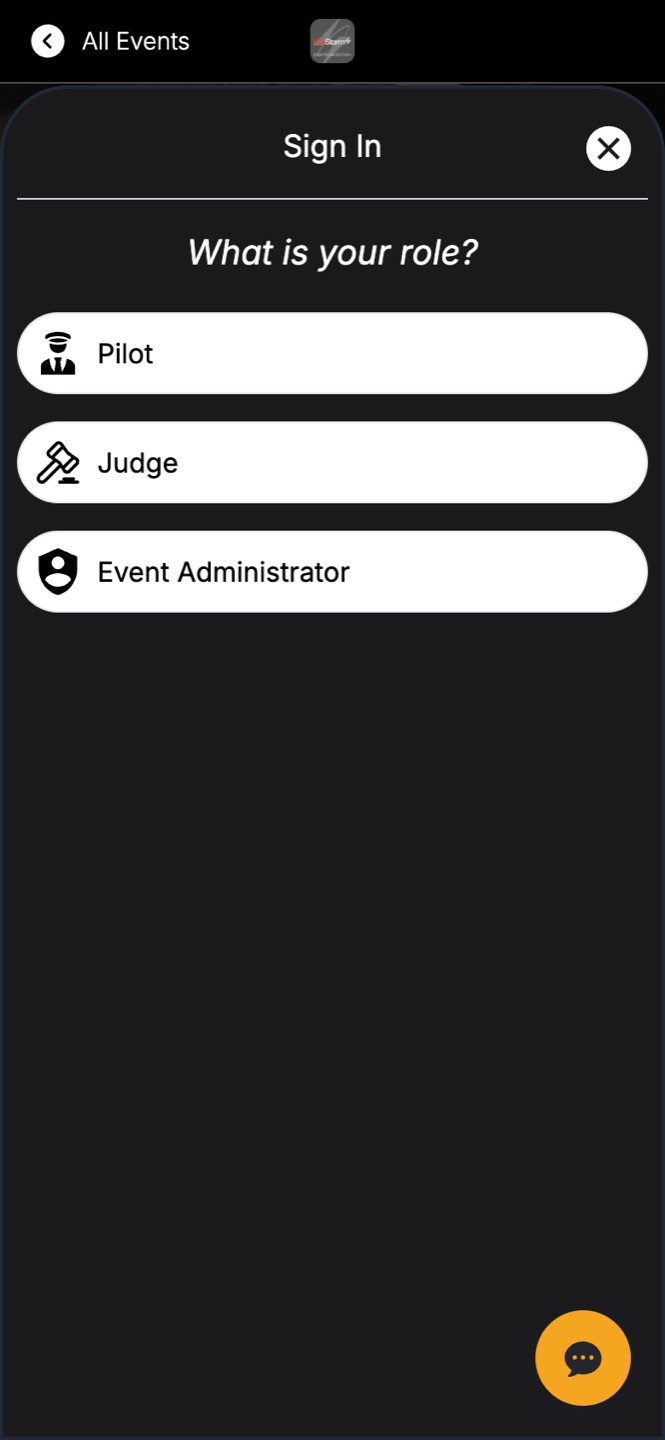
- Pick a role. The list uses your event's own terminology — an RC event says Pilot, a car show might say Owner — alongside Judge and Event Administrator.
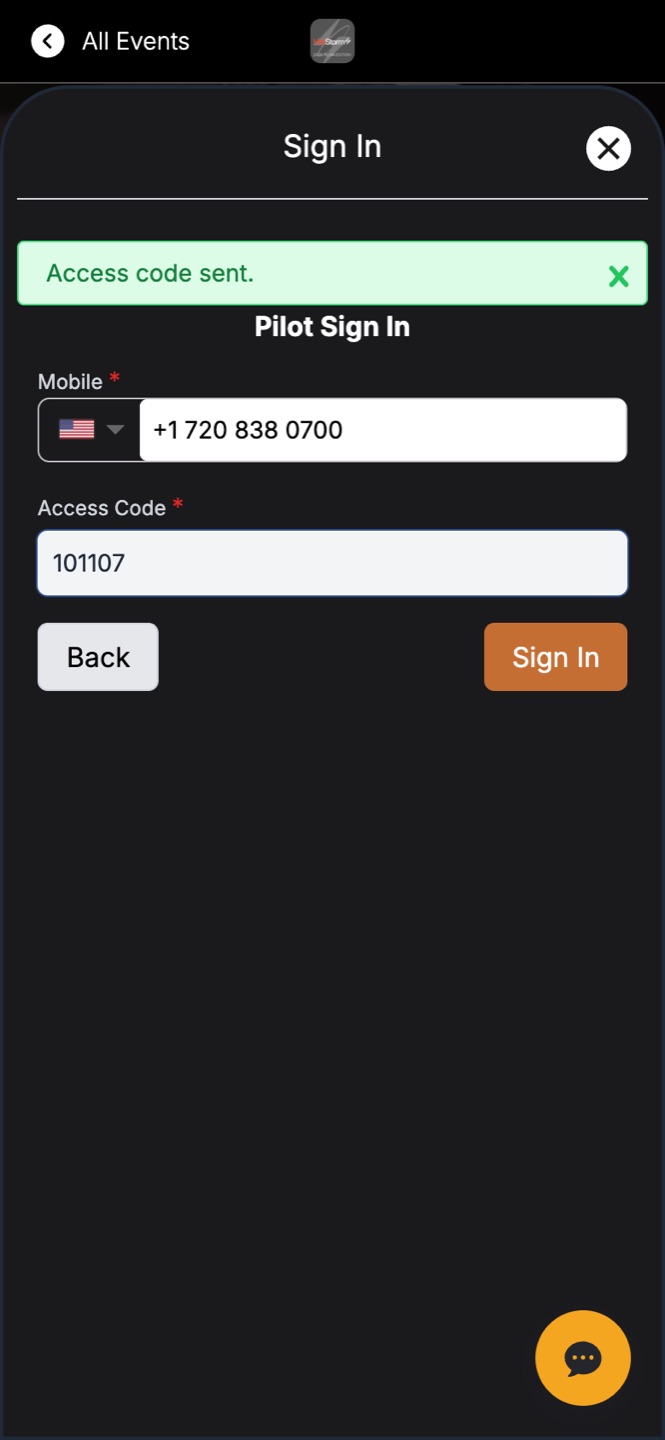
- Enter their mobile number. LiveJudge texts them a one-time access code.
- Type the code, tap Sign In — they're in. No account, no password, nothing to forget.
The home-screen prompt
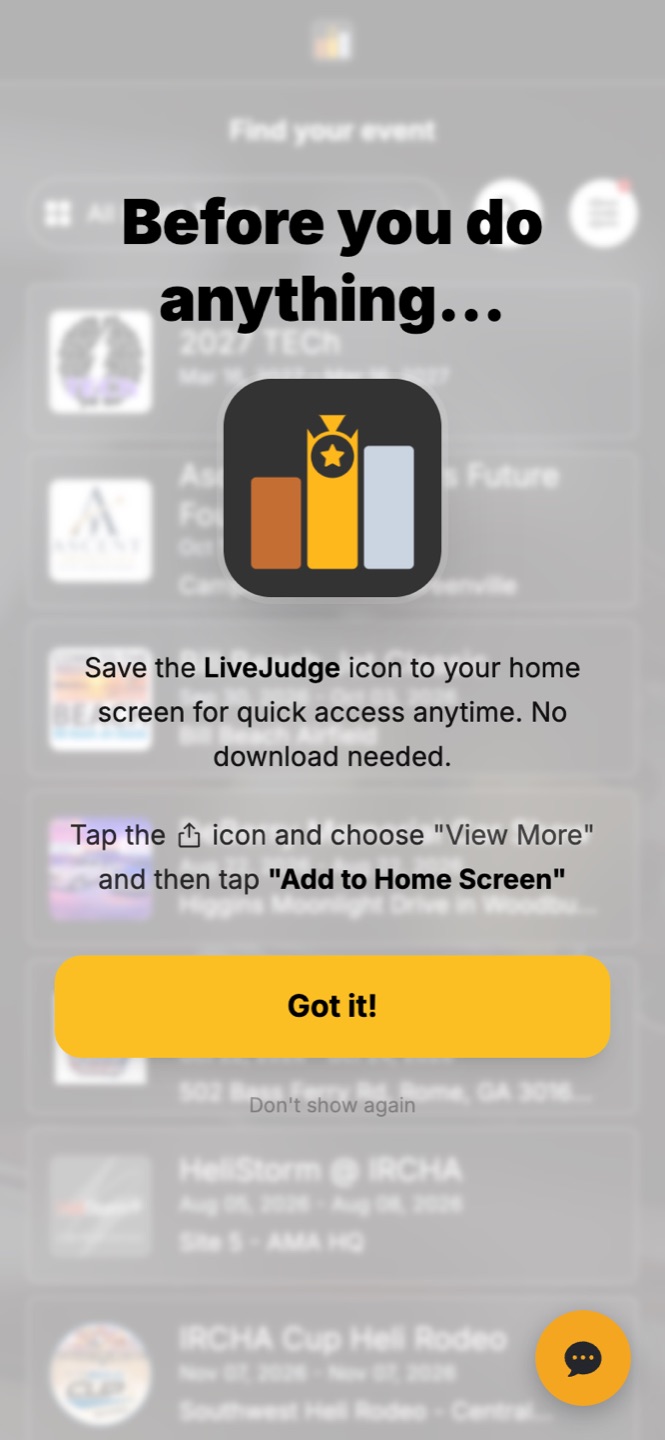
On phones, first-time visitors see a one-time tip suggesting they save LiveJudge to their home screen — no app-store download, just an icon for quick access all weekend. They can dismiss it with one tap.
Registration vs. sign-in
If you've enabled self-registration, brand-new contestants tap Register instead and add themselves on the spot. If you pre-loaded your contestant list, they simply sign in — their classes are already waiting for them.